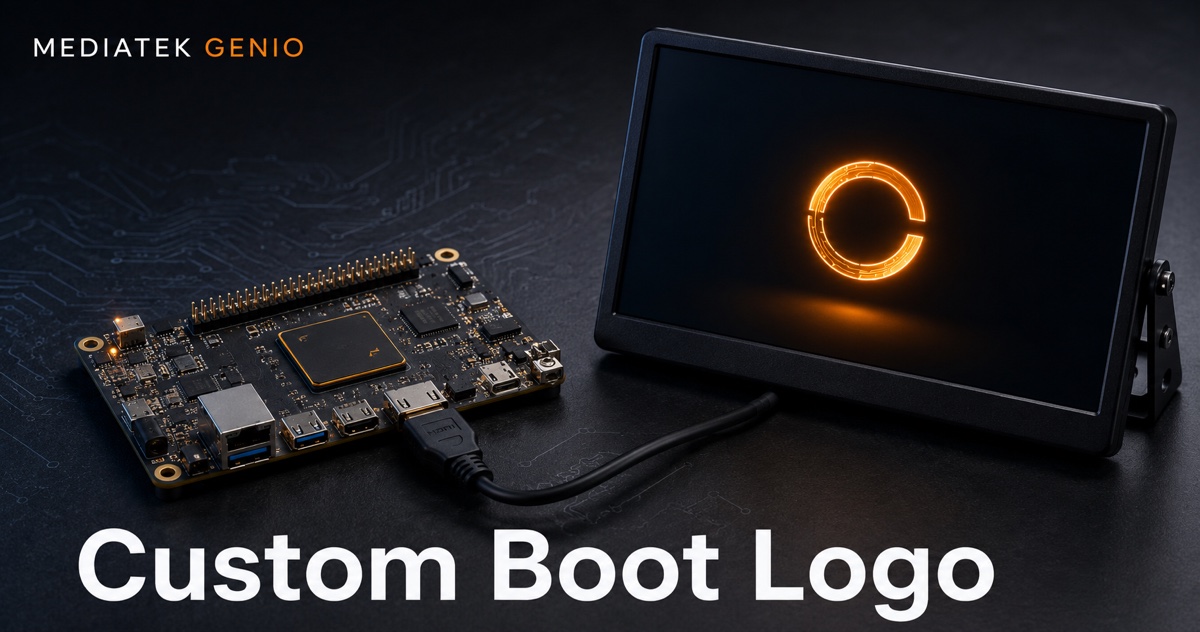
Customizing the boot logo on MediaTek Genio
On MediaTek Genio, the boot logo is not compiled into U-Boot, it is static data stored in the bootassets partition. That means you customize it by overriding one Yocto recipe, rebuilding a single partition, and flashing just that partition with genio-flash. This post covers where the logo sits in the Genio boot flow, the exact recipe override, the build-and-flash steps, and an honest note on the format details MediaTek’s docs leave to your BSP.
Where the boot logo lives in the Genio boot flow
Genio boots through the standard Arm secure-boot chain: BROM → BL2 (TF-A) → BL31 → BL32 (OP-TEE) → BL33 (U-Boot) → Linux. U-Boot is the stage that can put an image on the display before the kernel takes over, so the boot logo is a U-Boot-era splash.
The logo image itself is not baked into the U-Boot binary. It is one of the static assets in the dedicated bootassets partition, which also holds DTBs and device-tree overlays. That separation is the useful part: you can change the logo without touching the bootloader build at all. For the full stage-by-stage boot path and partition map, see the MediaTek Genio boot flow.
How to replace the boot logo
MediaTek’s IoT Yocto stores “static data such as boot logos, audio, or video files” in the bootassets partition, and you customize that partition with a .bbappend on the bootassets-part recipe. In your own layer:
- Create a bbappend alongside the recipe, for example
recipes-bsp/bootassets/bootassets-part.bbappend(match the recipe path your BSP uses). - Point the recipe at your logo file:
FILESEXTRAPATHS:prepend := "${THISDIR}/files:"
SRC_URI += "file://my-boot-logo.bmp"
- Place the file under a
files/directory next to the bbappend, and make sure the recipe’scollect_artifactsstep copies it into the partition staging, that hook is how IoT Yocto assembles the bootassets image.
The recipe is the single source of truth for what goes into the partition, so if your logo does not appear after flashing, the first thing to check is that collect_artifacts actually picked up your file.
Build and flash just the boot assets
Because the logo lives in its own partition, you do not rebuild the whole image. Build only the bootassets partition, then flash only that partition:
MACHINE=genio-720-evk bitbake bootassets-part
genio-flash bootassets
Use your board’s machine name (the Genio 420/520/720 share the genio-720-evk machine config). genio-flash bootassets writes only that partition, which keeps the logo change to a fast build-and-reflash loop instead of a full eMMC re-flash.
To put the board into download mode for flashing: hold the DOWNLOAD button, tap RESET, then release DOWNLOAD. The board enumerates over USB as 0e8d:0003 when it is ready to receive a flash.
Image format, resolution, and which display it lands on
This is where you have to read your own BSP, because MediaTek’s “modifying board assets” guide documents the mechanism but not the format. Two things to pin down before you finalize artwork:
- Format and resolution. The accepted image format, commonly BMP for U-Boot splash logos, and the resolution the bootloader expects are set by your
bootassetsrecipe and U-Boot’s splash configuration, not by a single published spec. Open thebootassets-partrecipe and the U-Bootsplashimage/logo config for your board to confirm the exact filename, format, and dimensions. Convert your artwork to match rather than assuming. - Which display shows the logo. Genio selects display output through device-tree overlays loaded by the
boot_confU-Boot variable:display-hdmi.dtbofor HDMI,display-dsi.dtbofor MIPI DSI,display-dp.dtbofor DisplayPort, and so on. The boot logo follows whichever display the active overlay brings up. If the logo renders on DSI but not HDMI, the usual cause is that the HDMI overlay is missing from yourboot_confstring, see HDMI troubleshooting on MediaTek Genio.
The short version
The boot logo on Genio is a bootassets asset, not a U-Boot rebuild: override the bootassets-part recipe with your image, run bitbake bootassets-part, and flash with genio-flash bootassets. The mechanism is documented and fast to iterate; the exact image format and resolution live in your board’s bootassets recipe and U-Boot config, so confirm those before you ship the artwork.
Bringing up a custom Genio board and want the boot experience, logo, display bring-up, and BSP, handled on a fixed timeline? See our MediaTek Genio support services.
Relevant Services
MediaTek Genio Expert Support
Building on MediaTek Genio?
BSP bring-up, GStreamer pipelines, NeuroPilot integration, we've shipped it. Get unblocked fast. One call to scope it, fixed bid to deliver it.
Frequently Asked Questions
Where is the boot logo stored on MediaTek Genio?
The boot logo is static data in the dedicated bootassets partition, not compiled into the U-Boot binary. MediaTek's IoT Yocto stores static assets such as boot logos, audio, and video files in this partition, and you customize them through the bootassets-part recipe in your Yocto layer. Because the logo is data rather than bootloader code, you can change it without rebuilding U-Boot.
How do I change the Genio boot logo without rebuilding the whole image?
Override the bootassets-part recipe with a .bbappend that adds your logo file, then build and flash only that partition: MACHINE=<board> bitbake bootassets-part, followed by genio-flash bootassets. genio-flash writes only the bootassets partition, so updating a logo is a fast build-and-reflash loop rather than a full eMMC re-flash.
What image format and resolution does the Genio boot logo use?
MediaTek's 'modifying board assets' guide documents the mechanism (the bootassets partition and recipe) but not a single published format or resolution. The accepted format (commonly BMP for U-Boot splash logos) and the expected resolution are defined by your board's bootassets recipe and U-Boot splash configuration. Open the bootassets-part recipe and the U-Boot splashimage/logo config for your board to confirm the exact filename, format, and size before converting your artwork.
Why does my boot logo appear on DSI but not on HDMI?
Genio selects its display output through device-tree overlays loaded by the boot_conf U-Boot environment variable, such as display-hdmi.dtbo for HDMI and display-dsi.dtbo for MIPI DSI. The boot logo follows whichever display the active overlay brings up. If the logo shows on DSI but not HDMI, confirm the HDMI overlay is present in your boot_conf string.
Do I need to flash the entire eMMC to update the boot logo?
No. The boot logo lives in its own bootassets partition, so genio-flash bootassets writes only that partition. You keep the rest of the image (bootloaders, kernel, rootfs) untouched, which makes logo iteration quick during development.
Written by
Aarón AnguloCo-Founder & CEO · ProventusNova
Obsessed with client outcomes. Aarón ensures every engagement delivers real results, on time, on scope, no exceptions.
Connect on LinkedInRelated Articles
Getting an LD06 Lidar onto the MediaTek Genio
The LD06 lidar got no device node on our MediaTek Genio: the vendor kernel had no driver for its USB-serial chip. Building the module, and the UART fallback.
MediaTek Genio 420: specs, Yocto BSP, and how it compares to Genio 520 and 720
MediaTek Genio 420 (MT8371LV) is the low-voltage Genio 520 variant. Same EVK, Yocto BSP, ONNX NPU EP. Specs, limitations, and when to choose 420 vs 520 vs 720.
Chromium hardware video acceleration on MediaTek Genio
Run Chromium on MediaTek Genio with hardware video decode: which Yocto image ships it, how to verify decode is on the VPU, kiosk mode setup, and WebRTC limits.
PipeWire audio on MediaTek Genio: setup, routing, gotchas
How audio works on MediaTek Genio under Yocto: PipeWire vs ALSA, the AFE's DL/UL paths, PMIC codec routing, missing aplay, and the gotchas that break products.