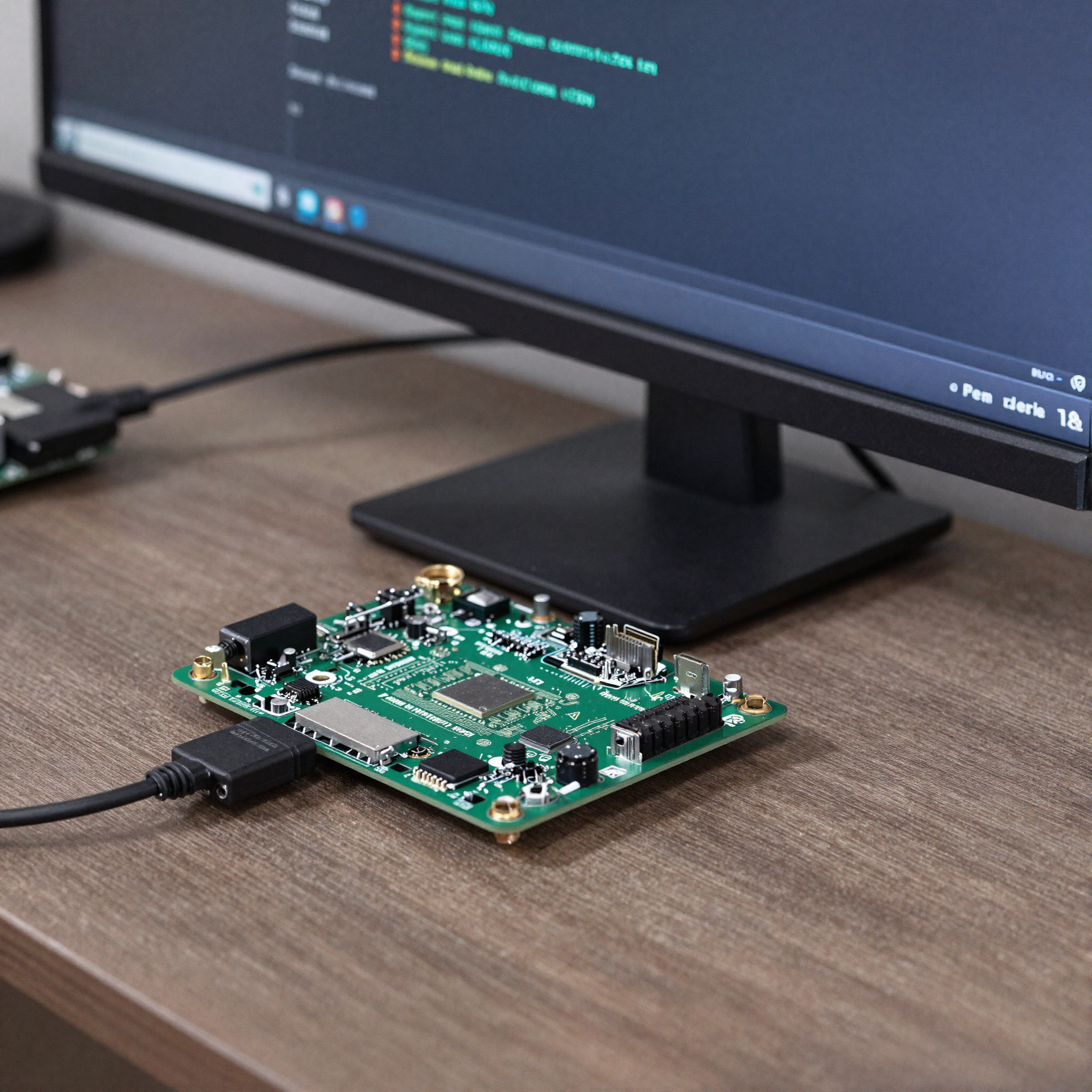
HDMI troubleshooting on MediaTek Genio: common failures and fixes
HDMI problems on MediaTek Genio usually fall into a few categories: no signal at boot, wrong resolution negotiated via EDID, display tearing in GStreamer pipelines, or audio not working. Most have straightforward fixes once you know where Weston and the DRM driver are making decisions. For GStreamer display pipeline setup including waylandsink configuration, see the dedicated guide.
Key Insights
- Weston enumerates displays at startup, connect the monitor before powering on to avoid hot-plug edge cases
- Resolution is negotiated via EDID; force it in
/etc/xdg/weston/weston.iniif the monitor reports a mode you do not want - The HDMI connector name in Weston is
HDMI-A-1, use this in waylandsink and weston.ini output config - HDMI audio uses ALSA, the device index varies by board, always check
aplay -lfirst - 4K@60fps requires HDMI 2.0 certified cable, a cheap cable is a common source of 4K failures
How do you check what Weston sees?
Before debugging, confirm what Weston knows about the display:
weston-info
Look for the output section. A working HDMI output looks like:
Output 0:
  name: HDMI-A-1
  description: ...
  physical_size: ...x... mm
  current mode: 1920x1080@60Hz
  modes:
    3840x2160@30Hz
    1920x1080@60Hz
    1280x720@60Hz
If HDMI-A-1 does not appear in weston-info output, Weston has not detected the display. Check physical connection and hot-plug.
Check DRM directly:
modetest -M mediatek
This lists all connectors, CRTCs, and modes the kernel DRM driver sees, independent of Weston. If modetest shows the HDMI connector as connected but Weston does not, the issue is in Weston’s startup sequencing.
What are the common HDMI failures?
No signal at all
Cause 1: Monitor connected after Weston started and hot-plug event not processed.
Disconnect and reconnect the HDMI cable. Weston handles hot-plug, but some monitors take several seconds to assert HPD. If the board has been on for a while and the display is still black, try:
weston-terminal
# or restart weston
systemctl restart weston
Cause 2: HDMI negotiated a mode the monitor cannot display.
Check kernel log for DRM mode set errors:
dmesg | grep -i hdmi
dmesg | grep -i drm
Cause 3: Board is outputting signal but monitor is on the wrong input.
Obvious, but worth checking, Genio EVKs have both DSI and HDMI. Confirm the monitor input selector.
Wrong resolution
Weston picks the highest common resolution from the monitor’s EDID. If this is wrong, override it:
vi /etc/xdg/weston/weston.ini
Add under the [core] section:
[output]
name=HDMI-A-1
mode=1920x1080
Restart Weston:
systemctl restart weston
Tearing in GStreamer video
Tearing appears when the pipeline frame rate and the display refresh rate are not synchronized. Add sync=true to waylandsink:
gst-launch-1.0 filesrc location=video.mp4 ! qtdemux ! h264parse ! mtkvdec \
  ! waylandsink display=HDMI-A-1 sync=true
For camera sources where timestamps may be inconsistent:
gst-launch-1.0 v4l2src device=/dev/video0 ! videoconvert \
  ! video/x-raw,framerate=30/1 ! waylandsink display=HDMI-A-1 sync=true
4K not working
4K requires:
- HDMI 2.0 certified cable (not all cables rated for HDMI carry 4K@60fps reliably)
- Genio platform that supports 4K@60fps (700, 720, 1200, not 350 or 510 at 60fps)
- Monitor that reports 4K mode in its EDID
Check if the monitor reports 4K in weston-info under modes. If it does not, the monitor or cable is the bottleneck. If it does but Weston is not using it, force the mode in weston.ini:
[output]
name=HDMI-A-1
mode=3840x2160@30
HDMI audio not working
First, identify the HDMI audio device:
aplay -l
Look for the HDMI entry, typically something like card 0: MTKAudio [MTKAudio], device 3: HDMI [HDMI].
Test directly:
aplay -D hw:0,3 /usr/share/sounds/alsa/Front_Center.wav
In GStreamer:
gst-launch-1.0 audiotestsrc ! audioconvert ! alsasink device=hw:0,3
If audio device is not listed, check that the HDMI display is active, the kernel ALSA driver for HDMI only registers the device when a display is connected and Weston has performed the mode set.
What does the display configuration matrix look like?
| Platform | Max HDMI resolution | Multi-display | HDMI + DSI simultaneous |
|---|---|---|---|
| Genio 350 | 4K@30fps | No | No (DSI only, HDMI on some EVK revisions) |
| Genio 510 | 4K@30fps | No | No |
| Genio 700 | 4K@60fps | Yes (HDMI + DSI) | Yes |
| Genio 520 | No HDMI (DP over USB-C instead) | Yes (DSI/eDP/DP/LVDS pairs) | No (no HDMI IP) |
| Genio 720 | No HDMI (DP over USB-C instead) | Yes (DSI/eDP/DP/LVDS pairs) | No (no HDMI IP) |
| Genio 1200 | 4K@60fps + HDR10 | Yes (up to 4 outputs) | Yes |
A correction worth stating plainly, because it changes product designs: Genio 520 and 720 have no HDMI transmitter at all. Their external monitor path is DisplayPort over USB-C (display-dpoc.dtbo), alongside DSI, eDP, and LVDS panel interfaces. We cover the board-level consequences in Genio hardware design gotchas.
How do you run dual displays, or mirror one onto the other?
First rule since IoT Yocto v25: no display interface is enabled by default. Every output, including the single default panel, comes from a device tree overlay selected at flash time, so “my second display does not exist” is usually a missing DTBO rather than a driver problem. On the 520/720 class, the two VDOSYS display pipelines support any two-output combination: DSI + eDP, DSI + DP-over-USB-C, LVDS + eDP, LVDS + DP, or eDP + DP. On the 510/700 class the pairings are DSI and HDMI (via the LT6911 bridge on the EVK) plus DP/eDP overlays. Load both overlays for your pair, then confirm the kernel sees both connectors:
modeprint mediatek
# Connector: DSI-1  conn: connected
# Connector: eDP-1  conn: connected
Both connected means the DRM side is done, and everything after this line is Weston configuration. By default Weston extends the desktop across outputs. For digital signage and status-display products you usually want cloning instead, which recent Weston releases support directly in weston.ini:
[output]
name=eDP-1
mode=1920x1080

[output]
name=DSI-1
same-as=eDP-1
same-as mirrors one output onto another; matching resolutions avoids scaling. If your Weston build predates same-as, the fallback is the application-level one: run your app fullscreen on one output and a mirror client on the second, or composite both from a single GStreamer pipeline with two sinks. For headless products the inverse applies: ship no display DTBO at all, and GPU work continues against the render node at /dev/dri/renderD128.
Dealing with display bring-up issues on MediaTek Genio? ProventusNova has hands-on experience with Genio display hardware across EVK and custom board designs. See our custom board bringup service or get in touch.
Relevant Services
MediaTek Genio Expert Support
Building on MediaTek Genio?
BSP bring-up, GStreamer pipelines, NeuroPilot integration, we've shipped it. Get unblocked fast. One call to scope it, fixed bid to deliver it.
Frequently Asked Questions
Why does the HDMI output show no signal on Genio even though the board boots?
The most common cause is the HDMI cable or monitor being connected after Weston has already started. Weston enumerates displays at startup, hot-plug after boot is supported but requires Weston to process the HPD (hot-plug detect) event. If the display stays black, try: (1) disconnect and reconnect the cable, (2) check that the HDMI cable is HDMI 2.0 rated if using 4K, (3) confirm the monitor is powered on before the board boots.
How do I force a specific HDMI resolution on Genio?
Set the output mode in Weston's config file at /etc/xdg/weston/weston.ini. Under the [output] section, set mode= to the desired resolution: mode=1920x1080. Without this, Weston negotiates the best mode with the monitor via EDID. If the negotiated mode is wrong, forcing it in weston.ini is the reliable fix.
Why is the HDMI output stretched or showing wrong aspect ratio?
This happens when Weston picks a mode the monitor supports but the GStreamer pipeline is sending a different resolution. In GStreamer, add a videoscale element before waylandsink to match the pipeline output to the display resolution. Also check that the monitor's own aspect ratio setting is not overriding the signal.
Does Genio support audio over HDMI?
Yes. HDMI audio on Genio uses the ALSA HDMI audio device. In GStreamer, use the alsasink element with the HDMI device: alsasink device=hw:0,3 (device number varies by board, check aplay -l for the HDMI device index). HDMI audio requires the display to be active and the HDMI connection to be established before the audio pipeline starts.
What is the maximum HDMI resolution supported on each Genio platform?
Genio 350: HDMI 2.0, up to 4K@30fps. Genio 510: HDMI 2.0, 4K@30fps. Genio 700 and 720: HDMI 2.0, 4K@60fps. Genio 1200: HDMI 2.0, 4K@60fps with HDR10 support. The actual achievable resolution also depends on the cable (HDMI 2.0 certified cable required for 4K@60fps) and the monitor's EDID reporting.
Written by
Aarón AnguloCo-Founder & CEO · ProventusNova
Obsessed with client outcomes. Aarón ensures every engagement delivers real results, on time, on scope, no exceptions.
Connect on LinkedInRelated Articles
GStreamer + waylandsink on MediaTek Genio: display output setup
How to use waylandsink on MediaTek Genio for Wayland display output. Pipeline setup, multi-display config, and fixes for common failures.
Jailhouse hypervisor on MediaTek Genio: bare-metal isolation on Linux
Jailhouse hypervisor on MediaTek Genio 720: cell config, GIC addresses, required kernel patches, MTK vendor config, and IVSHMEM communication.
ISP differences between Genio 510/700 and Genio 520/720
What changed in the MediaTek Genio ISP between Gen 1 (510/700) and Gen 2 (520/720): pipeline depth, virtual channels, and camera driver differences.
MediaTek Genio boot flow: from power-on to Linux
MediaTek Genio boot sequence: TF-A, OP-TEE, U-Boot through Linux. Covers partition layout, boot_conf overlay loading, and strapping for custom carrier boards.