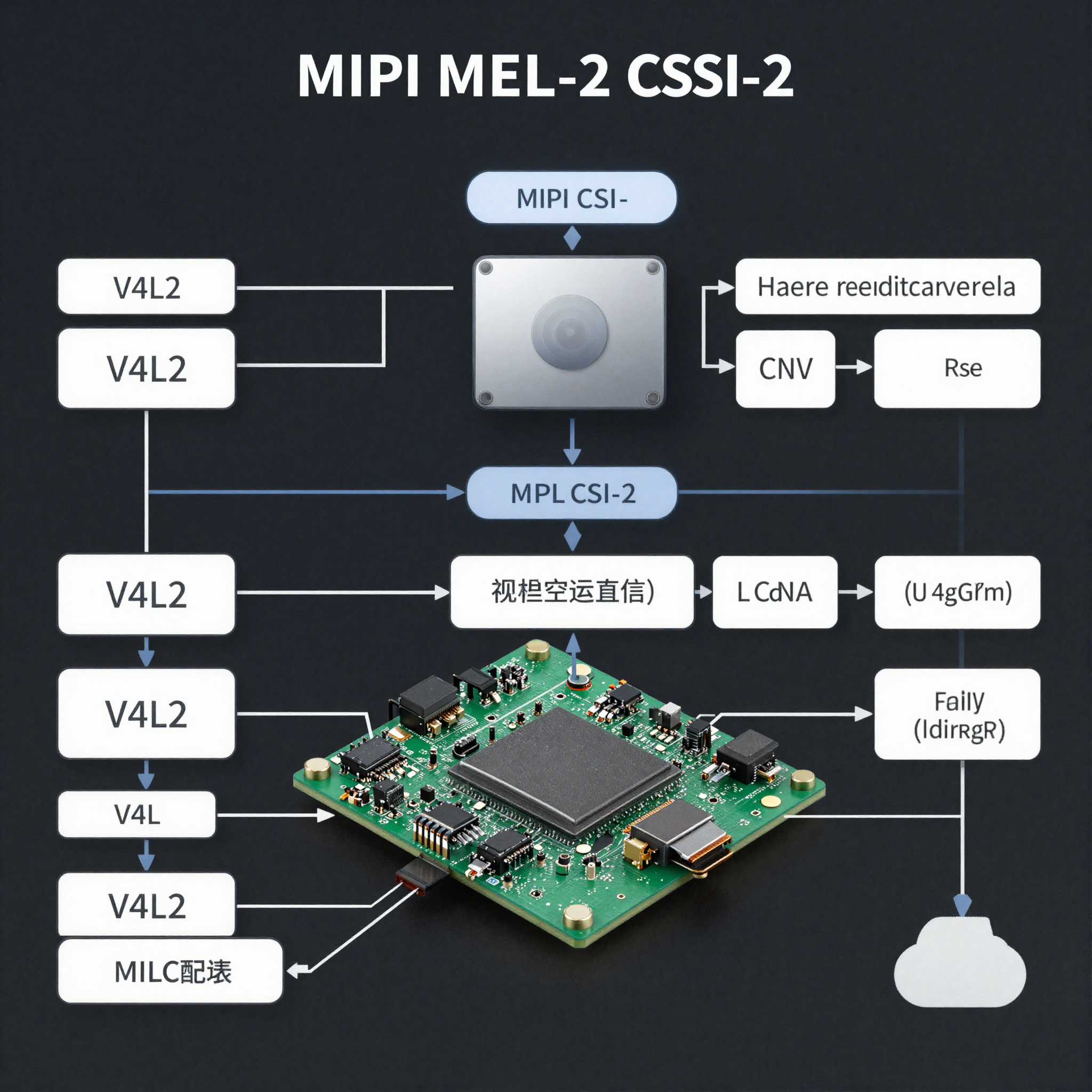
MIPI CSI camera driver setup on MediaTek Genio
Getting a MIPI CSI-2 camera working on MediaTek Genio involves three layers: the device tree configuration, the sensor kernel driver, and the media controller pipeline that connects the sensor to the ISP. Each layer must be correct before the camera appears as a usable V4L2 device.
Key Insights
- The seninf driver is the MIPI CSI-2 receiver, it connects the physical lanes to the ISP pipeline
- Sensor driver + device tree + media controller link all must be correct before
v4l2-ctlcan see formats media-ctlis the tool for inspecting and configuring the V4L2 media graph on Genio- NDA build is required for ISP hardware acceleration, without it you get raw frames without processing
- USB UVC cameras work without any BSP changes and are useful for early development
How does the camera pipeline work on Genio?
The camera path has four stages:
Sensor (I2C driver + MIPI output)
  → seninf (MIPI CSI-2 receiver, kernel driver)
    → ISP pipeline (NDA layer, raw to processed)
      → V4L2 video device (/dev/videoN)
The sensor driver handles the I2C register communication, setting resolution, exposure, gain, and streaming mode. The seninf driver receives the MIPI data packets and passes them to the ISP. The ISP (with NDA layer) performs demosaicing, noise reduction, and 3A processing. The final output appears as a V4L2 capture device.
Without the NDA ISP layer, the pipeline still works but outputs raw Bayer data without processing. For the ISP differences between Genio generations, see ISP differences between Genio 510/700 and 520/720.
What does the device tree entry look like?
A minimal device tree entry for an IMX219 sensor on Genio’s first CSI port:
&i2c2 {
    imx219: camera@10 {
        compatible = "sony,imx219";
        reg = <0x10>;

        reset-gpios = <&pio 25 GPIO_ACTIVE_LOW>;
        VANA-supply = <&mt6359p_vcamd_reg>;
        VDIG-supply = <&mt6359p_vcn18_reg>;
        VDDL-supply = <&mt6359p_vcn18_reg>;

        port {
            imx219_out: endpoint {
                remote-endpoint = <&seninf_csi0_in>;
                clock-lanes = <0>;
                data-lanes = <1 2>;
                link-frequencies = /bits/ 64 <456000000>;
            };
        };
    };
};

&seninf_top {
    ports {
        port@0 {
            seninf_csi0_in: endpoint@0 {
                remote-endpoint = <&imx219_out>;
                bus-type = <4>; /* MIPI CSI-2 */
            };
        };
    };
};
Key fields:
reg: I2C address of the sensorreset-gpios: GPIO for the sensor reset pin (check your board schematic)*-supply: power regulators for the sensor (VANA, VDIG, VDDL vary by sensor)data-lanes: MIPI lane mapping,<1 2>for a 2-lane sensorlink-frequencies: the MIPI bit rate the sensor will operate at (must match the sensor datasheet)
How do you verify the driver loaded correctly?
After booting with the new device tree:
# Check that the sensor I2C device was recognized
dmesg | grep imx219

# Check for seninf and ISP in the media graph
media-ctl -p
media-ctl -p lists the full pipeline topology. A healthy output shows the sensor subdev linked to seninf, and seninf linked to the ISP entities:
- entity 1: imx219 2-0010 (1 pad, 1 link)
    type V4L2 subdev subtype Sensor flags 0
    pad0: Source
        -> "seninf-2":0 [ENABLED,IMMUTABLE]

- entity 5: seninf-2 (2 pads, 2 links)
    type V4L2 subdev subtype Unknown flags 0
    pad0: Sink
        <- "imx219 2-0010":0 [ENABLED,IMMUTABLE]
    pad1: Source
        -> "mtk-cam-dma":0 [ENABLED]
If the sensor pad shows [ENABLED] and the link to seninf is established, the pipeline is connected.
How do you capture frames?
List available capture devices:
v4l2-ctl --list-devices
Set the format and query capabilities on the capture device:
v4l2-ctl -d /dev/video0 --list-formats-ext
v4l2-ctl -d /dev/video0 --set-fmt-video=width=1920,height=1080,pixelformat=NV12
Capture a single frame:
v4l2-ctl -d /dev/video0 --stream-mmap --stream-to=frame.raw --stream-count=1
Stream in GStreamer (for waylandsink setup details see GStreamer + waylandsink on Genio):
export WAYLAND_DISPLAY=wayland-0
gst-launch-1.0 v4l2src device=/dev/video0 \
  ! video/x-raw,width=1920,height=1080,framerate=30/1,format=NV12 \
  ! videoconvert \
  ! waylandsink
For a pipeline that also runs AI inference on the camera stream:
gst-launch-1.0 v4l2src device=/dev/video0 \
  ! video/x-raw,width=1920,height=1080,framerate=30/1,format=NV12 \
  ! tee name=t \
  t. ! queue ! waylandsink \
  t. ! queue ! videoconvert ! appsink name=inference_sink
What are the common camera failures?
| Symptom | Likely cause | Fix |
|---|---|---|
/dev/video0 not present | seninf or sensor driver not loaded | Check `dmesg |
VIDIOC_S_FMT failed | Pipeline not linked | Run media-ctl -p and check link status |
| Black frames | Sensor in reset or no power | Check reset GPIO and power regulators in dmesg |
| Noisy / raw frames | ISP not active (public build) | Use NDA build for ISP processing |
| Wrong resolution | link-frequencies mismatch | Match link-frequencies to sensor datasheet value |
| I2C probe fails | Wrong I2C address or wrong bus | Check schematic and verify reg = value |
Bringing up a MIPI CSI-2 camera on MediaTek Genio and need help with device tree, sensor driver porting, or ISP integration? ProventusNova has hands-on experience with Genio camera bring-up. See our CSI camera driver service or get in touch.
Relevant Services
MediaTek Genio Expert Support
Building on MediaTek Genio?
BSP bring-up, GStreamer pipelines, NeuroPilot integration, we've shipped it. Get unblocked fast. One call to scope it, fixed bid to deliver it.
Frequently Asked Questions
What kernel driver handles MIPI CSI-2 cameras on MediaTek Genio?
The seninf (sensor interface) driver handles the MIPI CSI-2 receiver on Genio. It sits between the physical MIPI lanes and the ISP pipeline. The seninf driver is part of meta-mediatek-bsp and is enabled in the default Genio kernel config. Your sensor driver (e.g., imx219, ov5647) registers as a v4l2-subdev and connects to seninf through the media controller graph.
How do I add a new camera sensor to the Genio device tree?
Add the sensor as an I2C device under the correct I2C bus, with a port/endpoint that connects to the seninf input. You need: the sensor's I2C address and compatible string, the MIPI lane count and clock-lanes definition, the link-frequencies value (the sensor's MIPI clock), a gpio for the sensor reset line, and a regulator or fixed-voltage supply for the sensor power. A reference device tree for imx219 on Genio is in arch/arm64/boot/dts/mediatek/ in the BSP kernel.
Why does v4l2-ctl show no formats even though the sensor is recognized?
The sensor driver is loaded but the media controller pipeline is not linked. Run media-ctl to enumerate the graph and check that the seninf pad is connected to the sensor subdev pad. If the pads are not linked, the pipeline cannot negotiate formats. Use media-ctl -p to view topology and media-ctl --set-v4l2 to configure links if they are not set by default.
What framerate can I achieve with a 4-lane MIPI CSI-2 sensor on Genio 720?
With a 4-lane sensor running at 800 Mbps per lane (the typical rate for IMX series sensors), you have approximately 3.2 Gbps of bandwidth. At 1920x1080 RAW10 format, this supports around 120fps. At 4K RAW10, approximately 30fps. Actual achievable framerate also depends on the sensor's own timing and the ISP processing rate.
Can I use USB cameras instead of MIPI CSI-2 on Genio?
Yes. USB UVC cameras work on Genio without any BSP changes, they use the standard Linux UVC kernel driver. They appear as /dev/videoN like MIPI cameras. USB cameras bypass the ISP entirely and do not benefit from the hardware ISP pipeline, but they work with the same V4L2 and GStreamer tooling. For prototyping or development, a USB camera is an easy starting point.
Written by
Andrés CamposCo-Founder & CTO · ProventusNova
8 years deep in embedded systems, from underwater ROVs to edge AI. Andrés leads every technical delivery personally.
Connect on LinkedInRelated Articles
ISP differences between Genio 510/700 and Genio 520/720
What changed in the MediaTek Genio ISP between Gen 1 (510/700) and Gen 2 (520/720): pipeline depth, virtual channels, and camera driver differences.
Jetson camera works with v4l2-ctl but fails to launch argus_camera, debug guide
Why your Jetson camera works with v4l2-ctl but argus_camera fails, tegra-camera DT node issues, sensor mode tables, and the V4L2-to-Argus fault path.
MediaTek Genio for computer vision: a practical guide
Build a computer vision pipeline on MediaTek Genio. Camera capture, GStreamer, OpenCV, TFLite NPU inference, and end-to-end object detection pipeline examples.
Building a custom Yocto meta layer for MediaTek Genio
Create a custom Yocto meta layer for MediaTek Genio. layer.conf, kernel bbappend, DTS overlays, machine config, custom distro, and the RITY skeleton pattern.