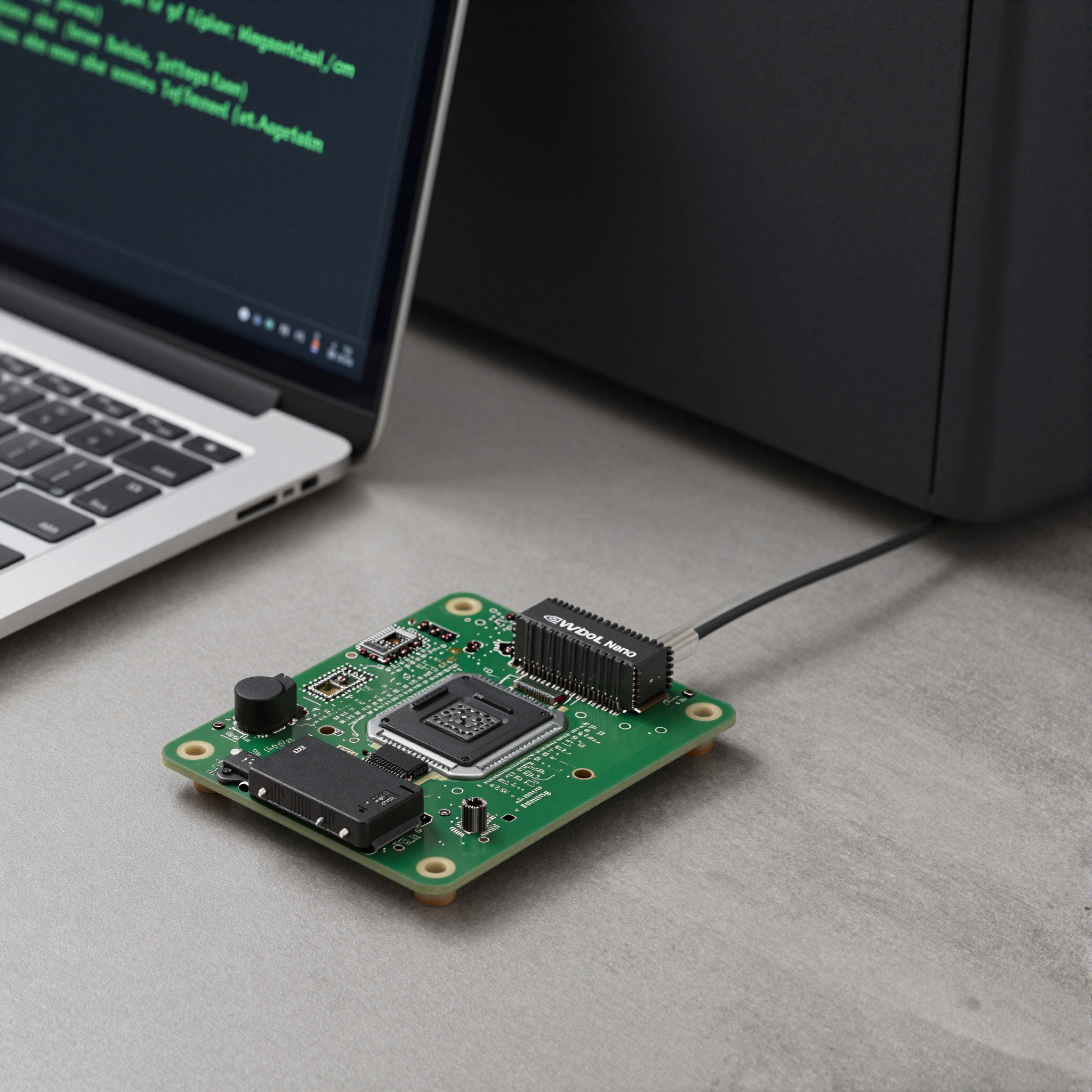
Jetson Nano Remote Access Setup: SSH, VNC, and NoMachine
The Jetson Nano runs Ubuntu 18.04 on JetPack 4.x, and getting reliable remote access set up on day one saves a lot of time on projects where the Nano lives in a bench rig, an enclosure, or anywhere you do not want to drag a monitor and keyboard to every time. SSH covers most of what you need. VNC and NoMachine handle the cases where you need the desktop.
Key Insights
- SSH is enabled by default on the JetPack 4.x desktop image and requires no configuration to get started
- Vino (the GNOME VNC server) is pre-installed and works without additional packages, but its performance is limited
- NoMachine is the best option for a full remote desktop experience on Jetson Nano, it is free, installs in minutes, and handles headless setups without a dummy HDMI adapter
- For headless operation without NoMachine, you need either a dummy HDMI plug or a virtual framebuffer to prevent the desktop session from starting at reduced resolution
- Set a static IP or configure mDNS (
hostname.local) early, tracking down the Nano’s DHCP address every reboot gets old quickly
SSH: works out of the box
The OpenSSH server is installed and running by default on the JetPack 4.x desktop image. From any machine on the same network:
ssh your-username@192.168.1.X
Find the Nano’s IP address:
# On the Nano
hostname -I

# For wired connection specifically
ip addr show eth0 | grep inet
If you want to avoid typing a password every time, copy your SSH key:
ssh-copy-id your-username@192.168.1.X
For a stable address, either configure a static IP in the network settings or set up mDNS so you can reach the Nano by hostname:
# From your laptop (macOS or Linux with avahi)
ssh your-username@tegra-ubuntu.local
The hostname defaults to tegra-ubuntu unless you changed it during setup. You can change it in Settings > About or with hostnamectl set-hostname your-name.
VNC with Vino (no extra install needed)
Vino is the GNOME VNC server and comes pre-installed on the JetPack 4.x desktop image. Enable it from the command line:
# Enable Vino and configure it
gsettings set org.gnome.Vino enabled true
gsettings set org.gnome.Vino prompt-enabled false
gsettings set org.gnome.Vino require-encryption false

# Set a VNC password (8 chars max for standard VNC)
gsettings set org.gnome.Vino authentication-methods "['vnc']"
gsettings set org.gnome.Vino vnc-password $(echo -n 'yourpassword' | base64)
Vino starts automatically when the desktop session starts. Connect from any VNC client (RealVNC Viewer, TigerVNC, or the macOS built-in Screen Sharing) at 192.168.1.X:5900.
One limitation: Vino requires an active desktop session. If you boot the Nano headless without a monitor, the desktop session may not start unless you enable auto-login. Enable auto-login in Settings > Users.
NoMachine: the best overall option
NoMachine handles headless setups better than Vino, delivers a smoother desktop experience, and handles clipboard and display scaling well. It is free for personal use.
On the Jetson Nano, download and install the ARM64 package:
# Download the ARM64 .deb (check nomachine.com for the current version)
wget https://download.nomachine.com/download/8.X/Arm/nomachine_8.X.X_arm64.deb

# Install
sudo dpkg -i nomachine_8.X.X_arm64.deb
The NoMachine service starts automatically after install. Connect from the NoMachine client on your laptop by entering the Nano’s IP address. No desktop session needs to be running, NoMachine creates a virtual display.
This is the option we use for Jetson Nano setups that live in enclosures or remote rigs. The virtual display means no dummy HDMI adapter is needed, and the session persists across disconnections.
Headless operation without NoMachine
If you are using VNC or SSH-only and the Nano has no monitor, the desktop may start at 640x480 or refuse to start the compositor. Two options:
Option 1: Dummy HDMI adapter. A cheap HDMI plug (under $5) or an EDID emulator tells the Nano a display is connected. The GPU initializes at a reasonable resolution and the desktop session starts normally. This is the simplest fix for VNC users.
Option 2: Configure a virtual framebuffer. Alternatively, configure a custom xorg.conf to define a virtual display resolution without hardware:
sudo nano /etc/X11/xorg.conf
Add a Virtual size to the Screen section to force a specific resolution regardless of connected hardware.
Setting a static IP
For any production setup or regular development use, a static IP is worth setting:
sudo nano /etc/network/interfaces
Or use nmcli for NetworkManager-managed interfaces:
# Set static IP via nmcli
sudo nmcli con mod "Wired connection 1" \
  ipv4.method manual \
  ipv4.addresses 192.168.1.50/24 \
  ipv4.gateway 192.168.1.1 \
  ipv4.dns "8.8.8.8 8.8.4.4"
sudo nmcli con up "Wired connection 1"
If you have a Jetson Orin or later platform, the remote desktop setup is similar but uses JetPack 5/6 on Ubuntu 20.04/22.04, the Jetson remote desktop guide for Orin covers those specific steps.
Frequently Asked Questions
How do I enable SSH on Jetson Nano?
SSH server is installed and enabled by default on the JetPack 4.x desktop image. Connect with ssh <username>@<ip-address>. Find the IP with hostname -I on the Nano.
What is the best VNC option for Jetson Nano on JetPack 4.x?
NoMachine is the most reliable option for a full desktop experience. For a lightweight option without extra software, Vino (pre-installed) works over standard VNC clients.
Can I use Jetson Nano headless without a monitor connected?
Yes. Use either a dummy HDMI adapter to force display initialization, or NoMachine which creates a virtual display independent of physical monitors.
What is the default username and password for Jetson Nano JetPack?
The username and password are set during first boot via the oem-config setup wizard. There is no universal default.
How do I find the IP address of my Jetson Nano on the network?
Run hostname -I or ip addr show eth0 on the Nano. For wireless, use ip addr show wlan0. You can also check your router’s DHCP lease table.
ProventusNova builds and deploys production Jetson systems for hardware startups. Talk to us if you are working on an embedded EdgeAI product.
NVIDIA Jetson Expert Support
Stuck on a Jetson bring-up?
We've debugged this failure mode before. BSP, device tree, camera pipelines, OTA, most blockers clear in the first session. No long retainers. No guessing.
Frequently Asked Questions
How do I enable SSH on Jetson Nano?
SSH server (openssh-server) is installed and enabled by default on the JetPack 4.x desktop image. Connect with 'ssh <username>@<ip-address>' from any machine on the same network. Find the IP with 'ip addr show eth0' or 'hostname -I' on the Nano.
What is the best VNC option for Jetson Nano on JetPack 4.x?
NoMachine is the most reliable option for a full desktop experience, it handles display scaling, clipboard, and audio better than Vino or x11vnc. For a lightweight option without installing extra software, Vino (pre-installed on the desktop image) works over standard VNC clients.
Can I use Jetson Nano headless without a monitor connected?
Yes, but without a display connected, the desktop session may not start or will start at a reduced resolution. Either plug in a dummy HDMI adapter (any cheap HDMI plug or edid emulator) to force a full resolution, or use NoMachine which creates a virtual display independent of physical monitors.
What is the default username and password for Jetson Nano JetPack?
The username and password are set during first boot via the oem-config setup wizard. There is no universal default, you set it yourself on first run. If you skipped this step, you may need to reflash and set credentials during the initial setup.
How do I find the IP address of my Jetson Nano on the network?
On the Nano itself: run 'hostname -I' or 'ip addr show eth0' for wired, 'ip addr show wlan0' for Wi-Fi. From your router admin page, look for a device named 'tegra-ubuntu' or check the DHCP leases. For a stable connection, set a static IP or use the hostname.
Written by
Andrés CamposCo-Founder & CTO · ProventusNova
8 years deep in embedded systems, from underwater ROVs to edge AI. Andrés leads every technical delivery personally.
Connect on LinkedInRelated Articles
Jetson remote desktop: NoMachine, VNC, xrdp & headless
Set up NoMachine, VNC, or xrdp on any NVIDIA Jetson. Includes the JetPack 6 Wayland fix, headless display setup, persistent service config, and firewall ports.
Jetson Nano vs Orin Nano: Same Name, Different Chip
Jetson Nano and Orin Nano share a name, not an architecture. Compare the Maxwell-to-Ampere jump, the JetPack stack change, and why it's a re-port.