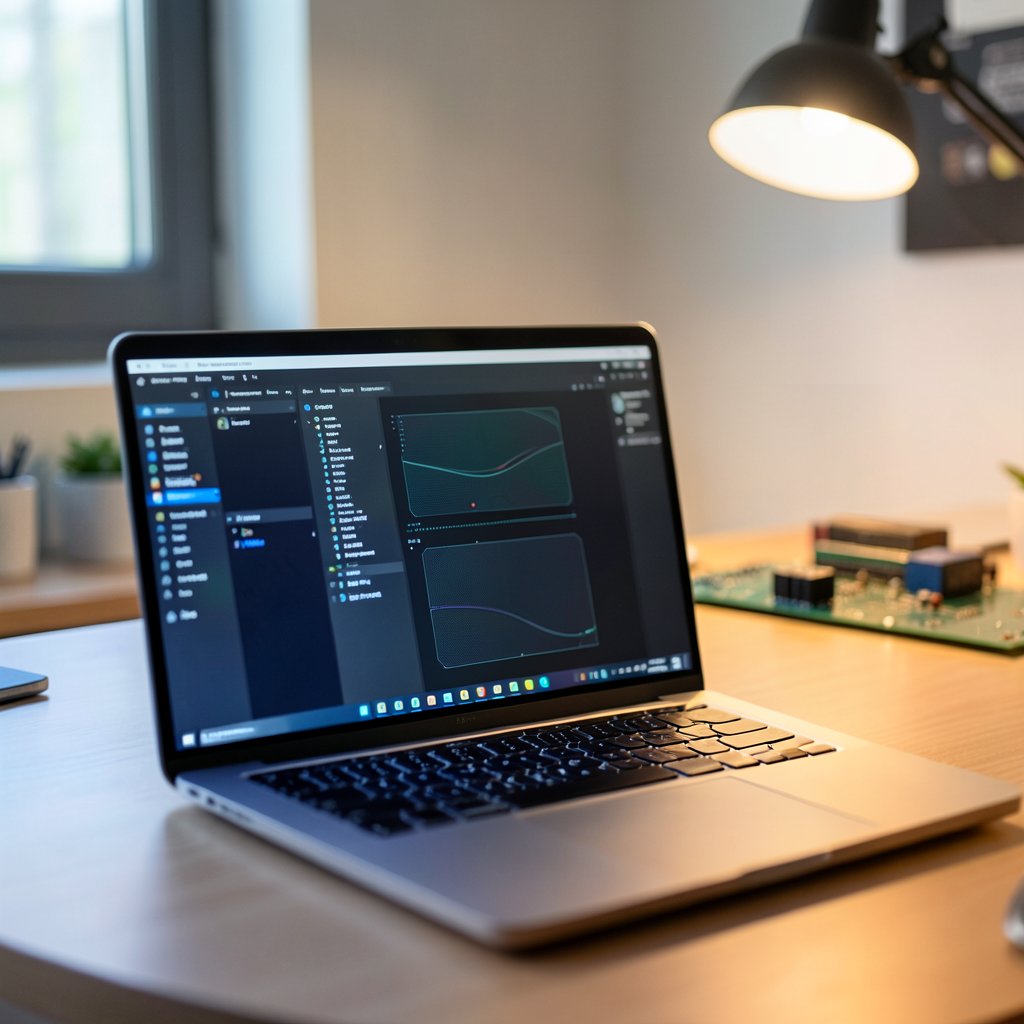
Jetson remote desktop: NoMachine, VNC, xrdp & headless
Running Jetson Orin headless for development or remote access requires choosing the right remote desktop stack, and the choice matters for GPU-accelerated applications. NoMachine, VNC, and X forwarding each have different performance characteristics and configuration requirements on Jetson. This post covers the setup and what to expect from each.
How to install NoMachine on Jetson Orin
To install the latest NoMachine on Jetson Orin: go to nomachine.com/download, select Linux → ARM (64-bit) → DEB, download the package to your Jetson, and run sudo dpkg -i nomachine_*.deb. The NX server starts automatically after install with no additional configuration. On JetPack 6 (Wayland), set WaylandEnable=false in /etc/gdm3/custom.conf and restart GDM3 before connecting. Connect from any NoMachine client using the Jetson’s IP address and your Linux username and password.
Key Insights
- NoMachine is the best Jetson remote desktop option, install the ARM64 DEB from nomachine.com and the NX server starts automatically; no configuration needed
- Headless without a monitor: an HDMI dummy plug (~$5) is the fastest fix; for software-only, use
xserver-xorg-video-dummywith a virtual screen config - JetPack 6 ships with Wayland by default, you must set
WaylandEnable=falsein/etc/gdm3/custom.confbefore NoMachine will connect - VNC is noticeably slower on WiFi, use
-depth 16to cut bandwidth roughly in half; for anything beyond occasional access, NoMachine is worth the extra setup - SSH X11 forwarding is not a full remote desktop, use it for launching single apps like
jtop, not for a full session
Which remote desktop option actually works on Jetson?
There are three real options: NoMachine (NX protocol), VNC, and SSH X11 forwarding. Each has a different sweet spot.
| Method | Protocol | Performance | Headless support | Best for |
|---|---|---|---|---|
| NoMachine | NX | Excellent | Yes (with dummy display) | Daily dev work |
| TigerVNC | RFB | Moderate | Yes (Xvfb or dummy plug) | Occasional access |
| SSH X11 | X11 over SSH | Poor for GUI-heavy | No | Running single apps |
NoMachine wins for regular development. VNC is fine if you only connect occasionally and have a decent network. SSH X11 forwarding is useful for launching a specific GUI tool, not for a full desktop session.
How to install NoMachine on Jetson Orin and Nano
NoMachine provides an ARM64 DEB that installs cleanly on all current Jetson modules. Go to nomachine.com/download, select Linux, ARM (64-bit), DEB format, and grab the package.
# Transfer to Jetson (or download directly on the device)
scp nomachine_*.deb user@jetson-ip:/home/user/

# Install
sudo dpkg -i nomachine_*.deb
The NX server starts automatically after install. Verify it’s running:
sudo /usr/NX/bin/nxserver --status
On your laptop, install the NoMachine client for macOS or Windows from the same download page. Open it, click New, enter your Jetson’s IP, and connect with your Linux username and password. The free tier covers everything you need for development.
JetPack 6 Wayland issue: JetPack 6 ships with GDM3 running Wayland by default. NoMachine expects an X session. Check what you’re running:
echo $XDG_SESSION_TYPE
If it says wayland, edit GDM3’s config. (If you’ve run into other JetPack 6 surprises during bring-up, the JetPack 6 USB enumeration failure post covers another common one we see in the field.)
sudo nano /etc/gdm3/custom.conf
Under [daemon], add or uncomment:
[daemon]
WaylandEnable=false
Then restart GDM3:
sudo systemctl restart gdm3
Now echo $XDG_SESSION_TYPE should return x11. Reconnect with NoMachine and you’ll have a full desktop.
Setting up a Jetson headless without a monitor
This is where most people get stuck. NVIDIA’s GPU driver needs a valid display signal to initialize. Without a monitor, X won’t start, and NoMachine has nothing to connect to.
Option 1: HDMI dummy plug (recommended)
A ~$5 HDMI dummy plug from Amazon tricks the GPU into thinking a monitor is connected. It provides a fake EDID, the driver initializes normally, and X starts without any configuration changes.
Plug it in before booting. That’s it. This is what we use on all our development rigs.
Option 2: Software virtual display
If you can’t use a dummy plug, install the Xorg dummy driver:
sudo apt install xserver-xorg-video-dummy
Create a virtual screen config:
sudo nano /etc/X11/xorg.conf.d/20-dummy.conf
Section "Device"
    Identifier "Dummy Device"
    Driver "dummy"
    VideoRam 256000
EndSection

Section "Screen"
    Identifier "Dummy Screen"
    Device "Dummy Device"
    Monitor "Dummy Monitor"
    DefaultDepth 24
    SubSection "Display"
        Depth 24
        Modes "1920x1080"
    EndSubSection
EndSection

Section "Monitor"
    Identifier "Dummy Monitor"
    HorizSync 28.0-80.0
    VertRefresh 48.0-75.0
    Modeline "1920x1080" 148.50 1920 2008 2052 2200 1080 1084 1089 1125 +hsync +vsync
EndSection
JetPack 6 note: If there’s already an /etc/X11/xorg.conf at the root level, it conflicts with the .d/ directory config. Rename it first:
sudo mv /etc/X11/xorg.conf /etc/X11/xorg.conf.backup
Reboot, and the dummy display will come up instead.
Setting up VNC on Jetson
VNC works, but it’s slower than NoMachine because it copies raw framebuffer data over the network. On WiFi, the lag becomes noticeable quickly.
Install TigerVNC:
sudo apt install tigervnc-standalone-server tigervnc-common
Set a VNC password:
vncpasswd
Start the VNC server. The :1 means display 1 (port 5901):
vncserver :1 -geometry 1920x1080 -depth 16
Using -depth 16 instead of 24 cuts bandwidth roughly in half, a meaningful difference on slower connections.
To stop the server:
vncserver -kill :1
For persistent VNC across reboots, create a systemd service. Connect from any VNC client (RealVNC Viewer, TigerVNC Viewer) to jetson-ip:5901.
When VNC makes sense: You have gigabit ethernet and connect rarely. For anything beyond occasional access, the NoMachine setup is worth the extra 10 minutes.
How to make VNC start automatically on boot
VNC doesn’t persist across reboots by default, you have to start it manually each time. The fix is a systemd service.
Create the service file:
sudo nano /etc/systemd/system/vncserver@.service
Paste this, replacing your-username with your actual Linux username:
[Unit]
Description=TigerVNC server
After=syslog.target network.target

[Service]
Type=forking
User=your-username
PAMName=login
PIDFile=/home/your-username/.vnc/%H%i.pid
ExecStartPre=/bin/sh -c '/usr/bin/vncserver -kill :%i > /dev/null 2>&1 || :'
ExecStart=/usr/bin/vncserver :%i -geometry 1920x1080 -depth 16 -localhost no
ExecStop=/usr/bin/vncserver -kill :%i

[Install]
WantedBy=multi-user.target
Enable and start it on display :1 (port 5901):
sudo systemctl daemon-reload
sudo systemctl enable vncserver@1
sudo systemctl start vncserver@1
Check that it’s running:
sudo systemctl status vncserver@1
VNC will now start automatically after every reboot. To stop it manually: sudo systemctl stop vncserver@1.
How to set up xrdp on Jetson (Windows Remote Desktop)
xrdp lets you connect to Jetson using the Windows built-in Remote Desktop client, no third-party software needed on your Windows machine. It’s the easiest option if your team is mostly on Windows.
Install xrdp:
sudo apt install xrdp
sudo systemctl enable --now xrdp
That’s it. On Windows, open Remote Desktop Connection (Win + R, type mstsc), enter your Jetson’s IP address, and click Connect. Log in with your Linux username and password.
JetPack 6 Wayland note: xrdp also requires an X session. If you haven’t already disabled Wayland for NoMachine, do it now:
sudo nano /etc/gdm3/custom.conf
# Add under [daemon]:
# WaylandEnable=false
sudo systemctl restart gdm3
Desktop environment note: On a fresh JetPack install, xrdp sometimes opens to a blank grey screen. If that happens, create a session config:
echo "startxfce4" > ~/.xsession
chmod +x ~/.xsession
sudo systemctl restart xrdp
If you don’t have Xfce installed: sudo apt install xfce4 xfce4-goodies. Xfce is lightweight and works reliably over xrdp on Jetson.
Comparison: xrdp vs NoMachine vs VNC
| xrdp (RDP) | NoMachine (NX) | VNC | |
|---|---|---|---|
| Windows client | Built-in (mstsc) | Download required | Download required |
| macOS client | Microsoft RD app | NoMachine client | Built-in Screen Sharing |
| Protocol efficiency | Good | Excellent | Poor |
| GPU app support | Limited | Good | Limited |
| Setup time | ~5 min | ~10 min | ~10 min |
xrdp is the fastest to set up for Windows users and good enough for most development tasks. NoMachine is better for anything GPU-accelerated or where you need low latency.
SSH X11 forwarding
This isn’t a full remote desktop. It lets you run individual GUI apps on the Jetson and have their windows appear on your laptop, useful for jtop with a GUI, or a quick gedit session.
On the Jetson, enable X11 forwarding in SSH:
sudo nano /etc/ssh/sshd_config
Find or add:
X11Forwarding yes
X11DisplayOffset 10
X11UseLocalhost yes
Restart SSH:
sudo systemctl restart ssh
Connect from your laptop:
# Linux
ssh -X user@jetson-ip

# macOS, requires XQuartz (xquartz.org) installed
ssh -Y user@jetson-ip  # -Y for trusted forwarding, avoids permission errors
Then launch any GUI app:
jtop # or gedit, or anything else
The app window opens on your laptop. Performance is slow for anything graphical, stick to lightweight tools.
Firewall ports for Jetson remote desktop
If you have ufw enabled on your Jetson, remote desktop connections will be silently blocked until you open the right ports. Check if ufw is active:
sudo ufw status
Open the ports you need:
# NoMachine (NX protocol)
sudo ufw allow 4000/tcp

# VNC (display :1 = port 5901, :2 = 5902, etc.)
sudo ufw allow 5901/tcp

# xrdp (RDP)
sudo ufw allow 3389/tcp

# SSH (if not already open)
sudo ufw allow 22/tcp
Apply the changes:
sudo ufw reload
Fresh JetPack installs usually have ufw inactive, but if you’ve hardened the system or are using a custom carrier board image, this is the first thing to check when a connection fails.
Troubleshooting: can’t connect to Jetson remote desktop
NoMachine says “connection refused” or times out
- Verify the NX server is running:
sudo /usr/NX/bin/nxserver --status - If it’s stopped:
sudo /usr/NX/bin/nxserver --startup - On JetPack 6, confirm you’ve disabled Wayland and restarted GDM3
- Check that port 4000 is open if ufw is active
VNC connects but shows a blank or black screen
- The X server isn’t running. Plug in an HDMI dummy plug or configure the software dummy display (see the headless section above)
- Check if X is running:
ps aux | grep Xorg - Try starting VNC on a different display:
vncserver :2
xrdp shows a grey screen after login
- Missing desktop environment in the xrdp session. Create
~/.xsessionwithstartxfce4and restart xrdp - Confirm Wayland is disabled in
/etc/gdm3/custom.conf
“Connection refused” on the right port
- Confirm the service is running:
sudo systemctl status nomachine/vncserver@1/xrdp - Confirm the Jetson’s IP hasn’t changed, check with
ip addr showorhostname -I - Ping the Jetson first (
ping jetson-ip) to rule out a network issue
Slow or laggy remote desktop
- Switch from VNC to NoMachine or xrdp
- On VNC, use
-depth 16instead of 24 - Connect over ethernet instead of WiFi if possible
- Lower the remote desktop resolution in the client
If you’re running a custom carrier board and hitting unexplained connectivity issues at the OS level, it’s sometimes a deeper bring-up problem. We’ve seen cases where network drivers behave differently on custom hardware vs. the devkit. The NVIDIA Jetson expert support page covers what that kind of engagement looks like.
JetPack version notes
The setup differs slightly depending on which JetPack you’re running. Check yours with:
cat /etc/nv_tegra_release
- JetPack 5.x (Orin, Xavier): Xorg by default. NoMachine installs and connects without the Wayland step.
- JetPack 6.x (Orin): GDM3 + Wayland by default. Add
WaylandEnable=falseto/etc/gdm3/custom.confbefore connecting with NoMachine. - JetPack 4.x (Nano, Xavier NX): Xorg. Same as JP5. Check
/etc/gdm3/custom.confto confirm Wayland isn’t enabled.
NVIDIA’s JetPack SDK documentation has the full release notes for each version if you need to verify what’s included in your specific build. If you’re also debugging a carrier board that won’t boot, our Jetson carrier board boot troubleshooting guide covers the six root causes we see most often.
NVIDIA Jetson Expert Support
Stuck on a Jetson bring-up?
We've debugged this failure mode before. BSP, device tree, camera pipelines, OTA, most blockers clear in the first session. No long retainers. No guessing.
Frequently Asked Questions
What is the best remote desktop software for NVIDIA Jetson?
NoMachine. Install the ARM64 DEB from nomachine.com, run sudo dpkg -i, and the NX server starts automatically. The NX protocol handles bandwidth constraints much better than VNC's raw framebuffer approach. The free tier is enough for development use.
How do I run Jetson headless without a monitor?
Buy a $5 HDMI dummy plug on Amazon. It gives the GPU a valid EDID to initialize against and X starts normally. For a software-only solution, install xserver-xorg-video-dummy and add a virtual screen config to /etc/X11/xorg.conf.d/. On JetPack 6, delete any conflicting root-level xorg.conf after adding the new config.
Does NoMachine work on Jetson Nano?
Yes. Jetson Nano runs JetPack 4.x which uses Xorg by default, no Wayland fix needed. Download the ARM64 DEB from nomachine.com, install with sudo dpkg -i, and the NX server starts automatically. Connect from any NoMachine client using the Nano's IP address and your Linux credentials.
Does NoMachine work on Jetson Orin?
Yes. Download the ARM64 DEB from nomachine.com and install it with sudo dpkg -i. On JetPack 6, check echo $XDG_SESSION_TYPE first. If you are on Wayland, set WaylandEnable=false in /etc/gdm3/custom.conf and restart GDM3 before connecting.
Why is my VNC connection to Jetson slow or laggy?
VNC copies raw framebuffer data across the network. It works fine on gigabit but degrades on WiFi. Use -depth 16 instead of 24 to reduce bandwidth, or lower the resolution. If responsiveness still matters, switch to NoMachine, which handles limited bandwidth much better.
How do I set up SSH X11 forwarding on Jetson?
Set X11Forwarding yes in /etc/ssh/sshd_config, restart SSH with sudo systemctl restart ssh, then connect with ssh -X username@jetson-ip. macOS users need XQuartz installed and should use ssh -Y for trusted X11 forwarding.
Does xrdp (Windows Remote Desktop) work on Jetson?
Yes. Install xrdp with sudo apt install xrdp, then enable it with sudo systemctl enable --now xrdp. Connect from Windows using the built-in Remote Desktop Connection app (mstsc) to your Jetson's IP on port 3389. On JetPack 6, you may need to set WaylandEnable=false in /etc/gdm3/custom.conf first.
How do I make VNC start automatically on boot on Jetson?
Create a systemd service file at /etc/systemd/system/vncserver@.service, add the ExecStart line pointing to vncserver with your display and geometry settings, then run sudo systemctl enable vncserver@1 and sudo systemctl start vncserver@1. The full service file is in the persistent VNC section of this post.
What ports does NoMachine use on Jetson?
NoMachine uses port 4000 (NX protocol) by default. If you have ufw enabled, run sudo ufw allow 4000/tcp. NX also falls back to port 22 (SSH) when port 4000 is blocked, but opening 4000 gives better performance.
How do I find my Jetson's IP address?
Run ip addr show on the Jetson and look for the inet line under your network interface (eth0 for ethernet, wlan0 for WiFi). Alternatively, run hostname -I which prints all assigned IP addresses on one line. If you're on the same network, you can also check your router's connected devices list.
Written by
Andrés CamposCo-Founder & CTO · ProventusNova
8 years deep in embedded systems, from underwater ROVs to edge AI. Andrés leads every technical delivery personally.
Connect on LinkedInRelated Articles
Jetson Nano Remote Access Setup: SSH, VNC, and NoMachine
How to set up remote access on Jetson Nano with JetPack 4.x, SSH, VNC with Vino or x11vnc, and NoMachine for a full desktop experience.
PREEMPT_RT real-time kernel on Jetson Orin, build, latency, and thread setup
Build and run a PREEMPT_RT real-time kernel on Jetson Orin for low-latency control, cyclictest, isolcpus, and SCHED_FIFO thread setup.
The 30% Tax™ Is Not a Freelancer Problem. It's a Jetson Expertise Problem.
20-30% of every engineering hour on Jetson BSP work is platform ramp. It hits internal teams the same as contractors. Here's what it costs and why.
AGPL to Permissive License Migration on Jetson TensorRT
How we migrated a Jetson TensorRT stack off AGPL YOLO-World and FastSAM to Apache-2.0 models, and the checkpoint trap that almost broke it.