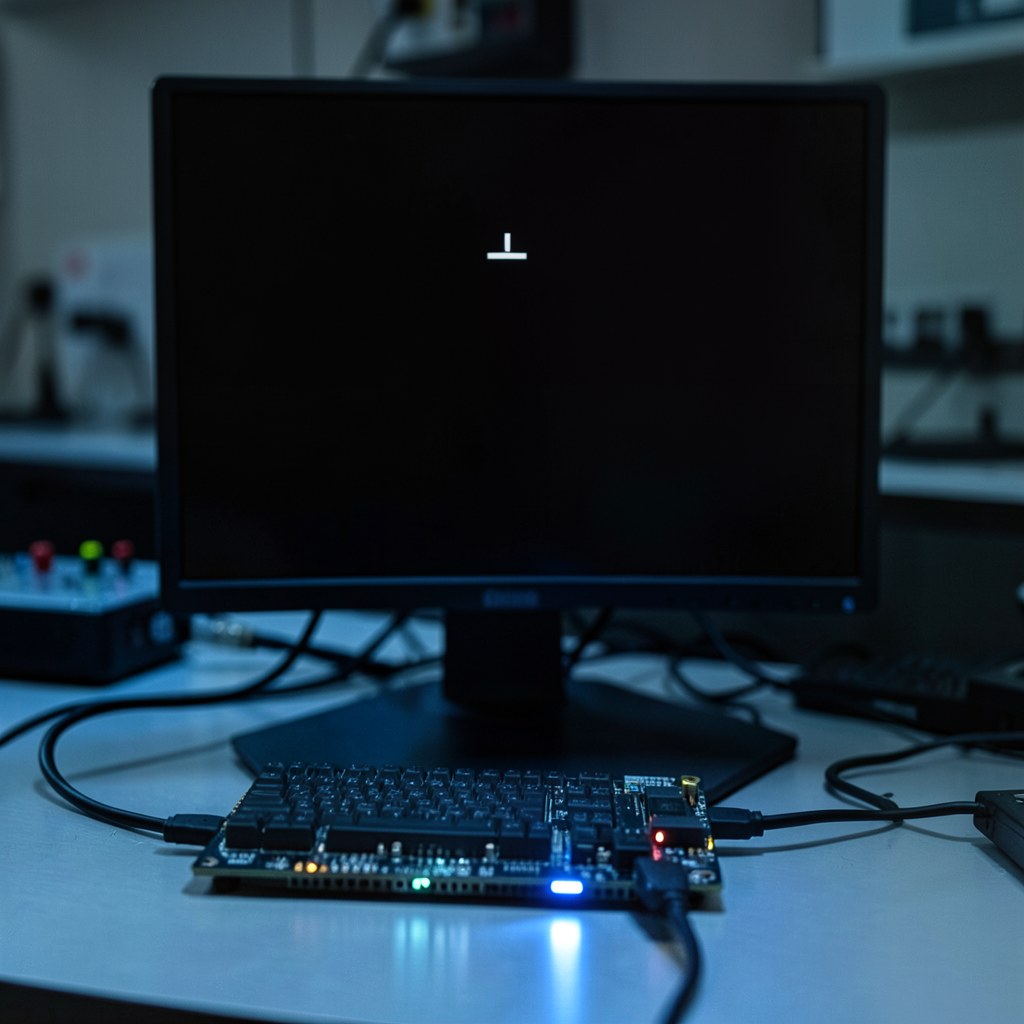
Jetson Carrier Board Not Booting: 6 Root Causes Nobody Documents
A Jetson carrier board that won’t boot is one of the most time-consuming problems in embedded development — not because it’s technically complex, but because the root causes are spread across BSP configuration, hardware design, and flash state, and the symptoms often look identical regardless of which one you’re dealing with. No serial output. No boot progress. Just silence.
Six root causes account for the majority of Jetson carrier board boot failures. Most of them are BSP configuration mismatches, not hardware defects. The board is usually fine. The software stack isn’t matching what the hardware expects.
This is a diagnostic reference for working through them in order.
Key Insights
-
Silence on serial doesn’t tell you which layer failed. No CBoot output means the problem is upstream of the bootloader — power sequencing or EEPROM. Output that stalls means the problem is downstream — ODMDATA, device tree, or boot device. The serial console is the first diagnostic tool, but only if you know how to read what it tells you.
-
Most carrier board boot failures are BSP configuration issues, not hardware defects. Electrical validation doesn’t validate BSP configuration. A board can pass all electrical tests and still fail to boot because the EEPROM is unprogrammed, the ODMDATA doesn’t match the hardware, or the device tree is for the wrong JetPack version.
-
The six root causes are independent but often co-present. A JetPack 5-to-6 migration on a custom carrier can trigger root causes 3, 5, and sometimes 2 simultaneously. Check all six before concluding you’ve found the only problem.
-
Pattern recognition compresses diagnosis from weeks to hours. Engineers who’ve debugged these root causes across multiple Jetson carrier boards know which serial output pattern maps to which root cause. Engineers debugging it for the first time are reading documentation that doesn’t always point directly to the answer.
-
For a specific case study of root causes 1, 2, and 3 in production, the Farmhand AI carrier board post covers how we diagnosed and fixed all three in one working session.
Root cause 1: Carrier board EEPROM not programmed
What it looks like: The board appears dead — no serial output — or CBoot outputs an EEPROM read error and stalls on device tree selection.
Why it happens: The Jetson module reads the carrier board EEPROM during early boot to identify which board it’s connected to. That board ID drives device tree overlay selection. If the EEPROM isn’t programmed — common when the manufacturing BOM doesn’t include EEPROM programming as an explicit step — the BSP defaults to the reference carrier board configuration. If your custom carrier differs from the reference design in power rails, peripherals, or GPIO assignments, that mismatch stalls the boot sequence.
How to diagnose: Read the EEPROM over I2C using a USB-I2C adapter before connecting the Jetson module. A blank EEPROM (all 0xFF bytes) or one containing reference board IDs confirms this root cause. You can also check dmesg or CBoot output for EEPROM read failure messages.
Fix: Program the EEPROM with the correct board ID for your custom carrier using NVIDIA’s Jetson EEPROM tool. The board ID maps to the device tree overlay the BSP will load. For custom carrier boards, this often requires creating a new board ID entry rather than reusing a reference one.
Root cause 2: ODMDATA mismatch in the BCT
What it looks like: CBoot is visible in serial output but stalls during peripheral initialization — specifically during PCIe, display, or USB initialization.
Why it happens: ODMDATA is a configuration field in the Boot Configuration Table (BCT) that controls hardware configuration options: PCIe lane count and assignment, display output configuration, USB mode, and storage device selection. ODMDATA is frequently copied from a reference design without being updated for the custom carrier’s actual configuration. If ODMDATA specifies PCIe x4 and your carrier has PCIe x1, CBoot attempts to initialize lanes that don’t exist.
How to diagnose: Extract the current ODMDATA value from the BCT using tegraflash or jetson-io tools and compare it against your carrier board’s actual peripheral configuration. CBoot serial output will show you which initialization step stalled — that step usually maps directly to the ODMDATA field that’s wrong.
Fix: Update ODMDATA to reflect the carrier board’s actual hardware — correct PCIe lane assignment, disable display configuration if no display is connected, correct USB mode. Reflash the BCT. This doesn’t require reflashing the full rootfs — the BCT can be updated independently.
Root cause 3: Power sequencing out of spec
What it looks like: The board boots intermittently, or not at all despite correct EEPROM and ODMDATA. The failure is non-deterministic — sometimes it boots, sometimes it doesn’t.
Why it happens: Jetson Orin has strict power-on sequencing requirements documented in the Hardware Design Guide. CARRIER_POWER_ON must assert within a specific window after VDD_IN stabilizes. VDD_IN must rise at a minimum slew rate. If the carrier board’s power management IC doesn’t meet these timing requirements — usually because default soft-start settings produce a ramp too slow for the module’s expectations — the module stalls waiting for signals that arrive out of sequence.
How to diagnose: Attach a logic analyzer to CARRIER_POWER_ON and VDD_IN and measure the assertion timing against the Jetson Orin Hardware Design Guide specification. Compare the actual CARRIER_POWER_ON assertion window and VDD_IN slew rate against the documented requirements. Non-deterministic boot failure with correct BSP config is almost always a power sequencing timing issue.
Fix: Adjust the PMIC soft-start configuration to tighten the VDD_IN ramp rate and bring CARRIER_POWER_ON assertion within spec. The specific register to update depends on the PMIC used on your carrier board, but the target parameters are in the Hardware Design Guide.
Root cause 4: Boot device not detected
What it looks like: CBoot reports no boot device found and falls into recovery mode. The serial output shows it scanning for boot devices and finding none.
Why it happens: Two sub-causes. First, wrong boot mode resistors — the Jetson module checks specific GPIO strapping pins at power-on to determine whether to boot normally or enter forced recovery mode. If the carrier board’s boot mode resistors are configured for forced recovery, the module won’t attempt to boot from the storage device. Second, the storage device (eMMC, NVMe, or UFS) isn’t recognized because the device tree entry doesn’t correctly describe the storage interface, or the physical wiring has an issue that prevents enumeration.
How to diagnose: First check the boot mode GPIO strapping. The carrier board schematic should show the FORCE_RECOVERY pin. If it’s being asserted at power-on, the module enters recovery mode regardless of software state. If boot mode strapping is correct, attach a logic analyzer to the eMMC or NVMe interface lines during boot and verify the storage device is responding.
Fix: Correct the boot mode strapping if FORCE_RECOVERY is incorrectly asserted. If the storage device isn’t being recognized, verify the device tree storage node against the hardware and re-verify the storage wiring continuity.
Root cause 5: Device tree mismatch after JetPack version upgrade
What it looks like: The board booted correctly on a previous JetPack version. After upgrading, it stalls mid-boot or certain peripherals stop working. USB devices don’t enumerate, cameras don’t deliver frames, or the board boots but dmesg shows errors during peripheral initialization.
Why it happens: JetPack version upgrades can change device tree binding conventions. The most significant recent example is JetPack 5 to JetPack 6 (L4T R35 to R36), which updated the kernel from 5.10 to 5.15 and revised USB PHY node bindings, PINMUX assignments, and host controller conventions. Device trees written for R35 apply correctly to R35 — but under R36, deprecated properties are silently ignored and the affected peripherals initialize without their correct configuration.
How to diagnose: Compare the device tree source files against the BSP documentation for the version you’re running. Look for properties marked deprecated in the kernel changelog between your source version and target version. The JetPack 6 USB enumeration failure pattern specifically is covered in the JetPack 6 USB post, which includes the four device tree changes that cause most JetPack 5-to-6 USB failures.
Fix: Update the device tree to match the BSP version being run. Apply changes as device tree overlays where possible to isolate version-specific changes from the base carrier board DTS — this makes future BSP migrations easier to manage.
Root cause 6: Partial JetPack flash
What it looks like: The board was working. A flash operation was performed — an update, a recovery attempt, or a routine reflash. Afterward, the board exhibits unexpected behavior: kernel panics early in boot, CBoot version mismatches in serial output, or intermittent failures that correlate with the flash boundary.
Why it happens: A flash process interrupted by power loss, USB disconnect, or timeout writes some components and not others. The most common case: the kernel is updated but the bootloader is not (or vice versa). Bootloader and kernel version mismatches produce subtle failures — sometimes booting correctly once then failing on reboot, sometimes panicking at a consistent point during kernel initialization.
How to diagnose: Check the CBoot version reported in serial output against the expected version for your JetPack release. If they don’t match, the flash was incomplete. Compare the kernel version (uname -r) against the expected version for the same JetPack release.
Fix: Perform a complete flash in a single operation using flash.sh with the full component set: bootloader, kernel, and rootfs. A partial re-flash to correct a partial flash usually produces another partial flash. Start clean with a full flash.
Using this reference
Work through the six root causes in order of how early in the boot sequence they manifest:
- No serial output at all — check power sequencing (root cause 3) and EEPROM (root cause 1)
- CBoot output but stalls at peripheral initialization — check ODMDATA (root cause 2)
- CBoot reports no boot device — check boot mode strapping and storage (root cause 4)
- Boots but certain peripherals don’t work after JetPack upgrade — check device tree (root cause 5)
- Intermittent or post-flash failures — check for partial flash (root cause 6)
Most carrier board boot failures resolve in one of these six areas. The ones that don’t are usually hardware issues — trace routing, component failures, or impedance mismatches — that require board-level debugging beyond BSP configuration.
If you’ve worked through all six and the board still won’t boot, the diagnostic path shifts to hardware: checking power rail voltages during the boot sequence, verifying signal integrity on critical interfaces, and isolating whether the Jetson module itself is functional on a known-good carrier.
Relevant Services
NVIDIA Jetson Expert Support
Stuck on a Jetson bring-up?
We've debugged this failure mode before. BSP, device tree, camera pipelines, OTA, most blockers clear in the first session. No long retainers. No guessing.
Frequently Asked Questions
Why is my Jetson carrier board not booting?
The six most common root causes: carrier board EEPROM not programmed (wrong device tree loads), ODMDATA mismatch in the BCT (reference config doesn't match custom hardware), power sequencing out of spec (CARRIER_POWER_ON or VDD_IN timing), boot device not detected (wrong boot mode resistors or storage device config), device tree mismatch after a JetPack upgrade, or a partial JetPack flash leaving bootloader and kernel versions mismatched. Most of these are BSP configuration issues, not hardware defects.
What should I check first when a Jetson carrier board produces no output?
First verify your serial console connection: 115200 baud, 8N1, correct UART port. If you confirm real silence -- no CBoot output at all -- the problem is upstream of the bootloader. Check power sequencing first (CARRIER_POWER_ON timing, VDD_IN slew rate) and then carrier board EEPROM programming. If you see early CBoot output that stalls, the problem is downstream: ODMDATA, device tree, or boot device detection.
How do I diagnose a Jetson ODMDATA problem?
Pull the current ODMDATA from the BCT using NVIDIA's tegraflash or jetson-io tools and compare it against your carrier board's actual hardware configuration. Look for discrepancies in PCIe lane count, display configuration, USB mode, and storage device assignment. CBoot output will show you which peripheral initialization step stalled -- that usually maps directly to the ODMDATA field that's wrong.
Can a device tree mismatch prevent a Jetson carrier board from booting?
Yes. A device tree written for one JetPack version can stall or silently misconfigure the board under a different version. The most common case is a JetPack 5 device tree applied under JetPack 6 (L4T R36), where deprecated PHY node properties are silently ignored and USB or camera peripherals fail to initialize. The board may appear to boot but produce no output on expected peripherals, or stall mid-boot.
What is a partial JetPack flash and how does it cause boot failure?
A partial flash happens when the flash process is interrupted -- power loss, USB disconnect, timeout -- and writes the kernel but not the bootloader (or vice versa). The result is a bootloader version and kernel version that don't match. Symptoms include unexpected kernel panics early in boot, CBoot version mismatches in serial output, or a board that boots correctly the first time after a flash but fails on subsequent reboots. Fix: perform a complete flash in a single operation.

Written by
Andrés CamposCo-Founder & CTO · ProventusNova
8 years deep in embedded systems, from underwater ROVs to edge AI. Andrés leads every technical delivery personally.
Connect on LinkedInRelated Articles
Custom Carrier Board Not Booting on Jetson Orin: Fixed in One Session
Custom carrier board not booting on Jetson Orin? Farmhand AI's board booted in one session. Three BSP parameters cause most Jetson bring-up failures.
Hardware design mistakes that cause Jetson carrier board bring-up failures
The hardware design mistakes that reliably cause Jetson carrier board bring-up failures: power sequencing, EEPROM errors, ODMDATA mismatches, and PCB.
What engineers wish they'd known before their first Jetson carrier board
Hard-won lessons from Jetson custom carrier board bring-up: what experienced engineers do differently the second time, covering BSP, hardware design, and.
Jetson UEFI shell at boot: assertion errors and how to recover
Dropped into the UEFI shell on Jetson Orin? Here's why it happens, from QSPI bootloader corruption to DTB mismatches, and the exact steps to recover.