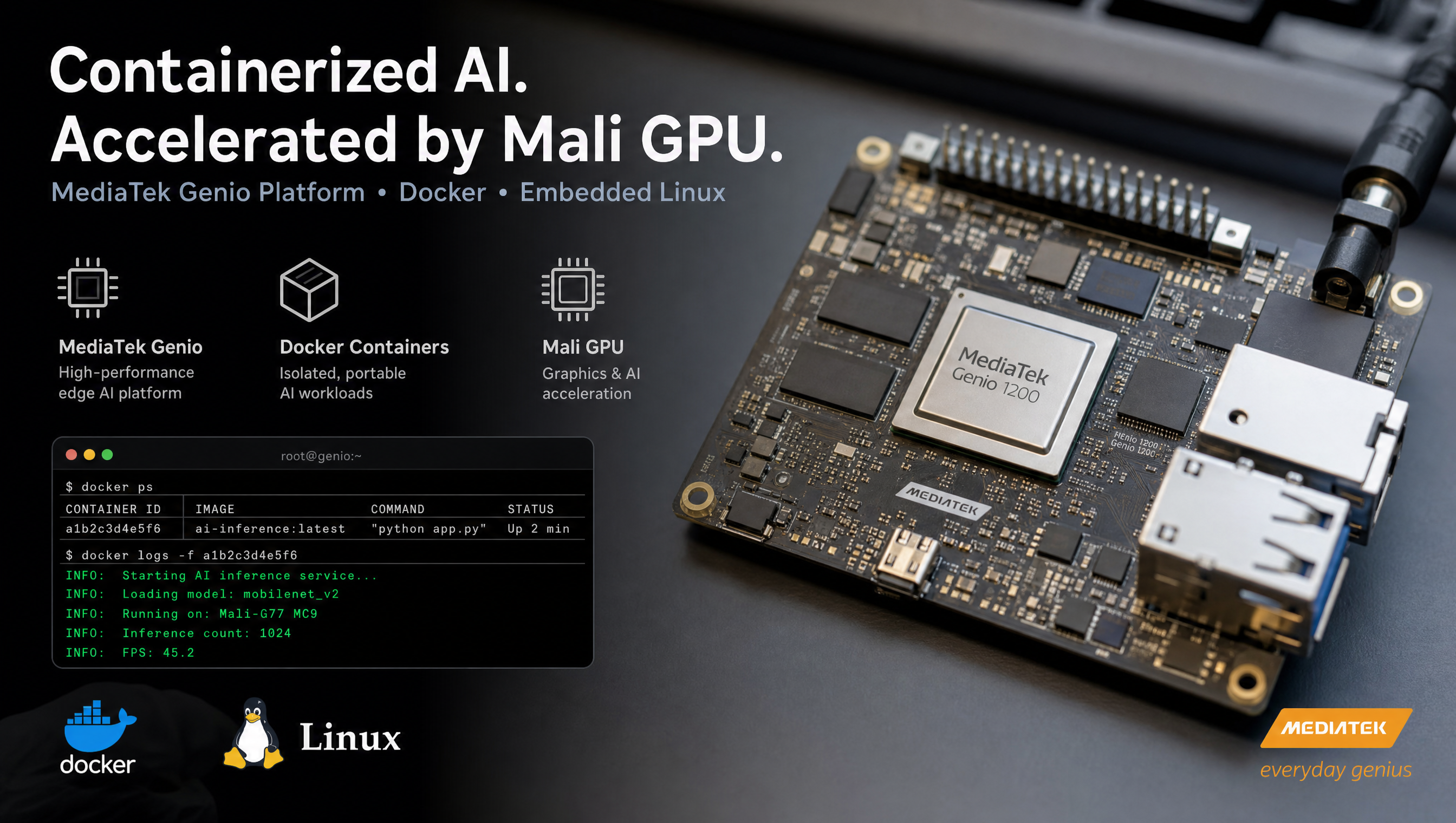
Docker with GPU acceleration on MediaTek Genio
Docker on MediaTek Genio lets you isolate workloads, ship reproducible application environments, and run inference pipelines alongside BSP services without polluting the root filesystem. The setup requires adding meta-virtualization to your Yocto build, it is not included in the default RITY image. GPU passthrough for Mali acceleration takes one extra step: device nodes and matching userspace libraries must be visible inside the container.
Key Insights
meta-virtualizationis the layer to add: it providesdocker-ce,containerd, andruncfor Yocto scarthgap; it is not in the default RITY stack- Mali GPU passthrough requires two things: the
/dev/mali0device node and matching Mali userspace libraries inside the container - NPU (MDLA) in containers is possible but version-sensitive: the NeuroPilot runtime inside the container must match the
apusyskernel driver on the host - SPI, I2C, and GPIO devices pass through cleanly: use
--deviceflags or thedevices:key in Docker Compose - Privileged mode is a shortcut, not a solution:
--privilegedworks but exposes all host devices; prefer explicit device passthrough in production
Adding Docker to a Genio Yocto image
Step 1: Add meta-virtualization to bblayers.conf
git clone https://github.com/openembedded/meta-virtualization.git \
  -b scarthgap sources/meta-virtualization
Add to conf/bblayers.conf:
BBLAYERS += " \
  ${BSPDIR}/sources/meta-virtualization \
"
Step 2: Enable virtualization DISTRO_FEATURE
In conf/local.conf or your custom distro conf:
DISTRO_FEATURES:append = " virtualization"
This flag gates the cgroup v2, namespace, and overlay filesystem support that Docker depends on. Without it, Docker starts but container creation fails with cgroup errors.
Step 3: Add Docker to IMAGE_INSTALL
IMAGE_INSTALL:append = " \
  docker-ce \
  docker-ce-cli \
  containerd \
  runc \
  python3-docker \
"
For a minimal setup using only containerd and nerdctl (lighter than full Docker CE):
IMAGE_INSTALL:append = " containerd nerdctl"
Step 4: Enable required kernel config
The Genio kernel config includes most required options, but verify these are set:
# Check from build directory
grep -E "CGROUPS|NAMESPACES|OVERLAY_FS|VETH" \
  tmp/work/<machine>-poky-linux/linux-mtk/*/build/.config
Critical options:
| Config | Required for |
|---|---|
CONFIG_CGROUPS=y | Container resource limits |
CONFIG_CGROUP_DEVICE=y | Device cgroup (device whitelist) |
CONFIG_NAMESPACES=y | Process/network/mount isolation |
CONFIG_OVERLAY_FS=y | Union filesystem for container layers |
CONFIG_VETH=y | Virtual Ethernet for container networking |
CONFIG_BRIDGE=y | Docker bridge network (docker0) |
All of these are enabled in the default Genio kernel config. If you have a heavily stripped custom config, re-enable them.
Step 5: Verify Docker starts on the board
# Check Docker daemon
systemctl status docker

# Run a test container (CPU only)
docker run --rm busybox echo "Docker is working"

# Check container runtime info
docker info | grep -E "Runtime|Driver|Cgroup"
Mali GPU passthrough
The Genio Mali GPU (Mali-G57) appears as /dev/mali0 on the target. Passing it to a container requires:
- The device node
- The Mali userspace libraries (EGL, OpenCL, OpenGL ES) that match the kernel driver
Basic GPU passthrough
docker run --rm \
  --device /dev/mali0:/dev/mali0 \
  --device /dev/dri:/dev/dri \
  your-image:latest
Docker Compose
services:
  app:
    image: your-image:latest
    devices:
      - "/dev/mali0:/dev/mali0"
      - "/dev/dri:/dev/dri"
    volumes:
      - "/dev/dri:/dev/dri"
Mali libraries inside the container
The Mali userspace libraries (libmali.so, EGL, OpenGL ES, OpenCL) must be present inside the container and must match the kernel driver version. The safest approach is to build your container image from the same Genio rootfs tarball:
FROM scratch
ADD genio-rootfs.tar.gz /
# Your app layers on top
Alternatively, copy the Mali libraries from the host into the container at runtime using a volume mount:
docker run --rm \
  --device /dev/mali0:/dev/mali0 \
  -v /usr/lib/libmali.so:/usr/lib/libmali.so:ro \
  -v /usr/lib/aarch64-linux-gnu/libEGL.so:/usr/lib/aarch64-linux-gnu/libEGL.so:ro \
  your-image:latest
Version mismatch between the host driver and container userspace libraries produces MALI: mali_kbase_open: version mismatch errors in dmesg.
NPU (MDLA / NeuroPilot) in containers
NPU acceleration from within a container requires passing the APUSys device nodes:
docker run --rm \
  --device /dev/mali0:/dev/mali0 \
  --device /dev/apusys:/dev/apusys \
  --device /dev/mtk_mdla0:/dev/mtk_mdla0 \
  your-inference-image:latest python3 run_model.py
The NeuroPilot runtime (libNeuronRuntime.so) inside the container must match the apusys.ko driver version loaded on the host. Check the host driver version:
cat /sys/kernel/debug/apusys/version
# Or check the loaded module
modinfo apusys | grep version
For TFLite CPU inference (no NPU), no special devices are needed, TFLite runs entirely in userspace:
docker run --rm your-inference-image:latest python3 -c "
import tflite_runtime.interpreter as tflite
interp = tflite.Interpreter('model.tflite')
interp.allocate_tensors()
print('TFLite loaded OK')
"
Peripheral device passthrough
All peripheral devices on Genio follow the same pattern: pass the device node with --device:
# docker-compose.yml
services:
  app:
    image: your-image:latest
    devices:
      - "/dev/mali0:/dev/mali0"       # Mali GPU
      - "/dev/apusys:/dev/apusys"     # APU/NPU
      - "/dev/spidev1.0:/dev/spidev1.0" # SPI
      - "/dev/gpiochip0:/dev/gpiochip0" # GPIO
      - "/dev/i2c-0:/dev/i2c-0"       # I2C bus 0
      - "/dev/video0:/dev/video0"     # V4L2 camera
For camera pipelines using GStreamer inside a container, also mount the V4L2 and DRM devices and pass the Wayland socket if display output is needed:
docker run --rm \
  --device /dev/video0:/dev/video0 \
  --device /dev/dri:/dev/dri \
  --device /dev/mali0:/dev/mali0 \
  -v /run/user/0/wayland-0:/run/user/0/wayland-0 \
  -e WAYLAND_DISPLAY=wayland-0 \
  -e XDG_RUNTIME_DIR=/run/user/0 \
  your-gstreamer-image:latest gst-launch-1.0 v4l2src ! waylandsink
Common issues
docker: Error response from daemon: cgroups: cgroup mountpoint does not exist
cgroup v2 isn’t mounted. Add to /etc/fstab: cgroup2 /sys/fs/cgroup cgroup2 defaults 0 0 and remount. Or set GRUB_CMDLINE_LINUX="systemd.unified_cgroup_hierarchy=1" in the kernel command line.
MALI: mali_kbase_open: version mismatch
Mali userspace version in the container doesn’t match the kernel driver. Use Mali libraries from the same BSP build.
/dev/mali0: no such file or directory inside container
Forgot --device /dev/mali0. The device node must be explicitly passed, it won’t appear just because the container has root access.
apusys: failed to open device
APUSys device not passed, or kernel driver not loaded. Check lsmod | grep apusys on the host first.
For the Yocto layer setup that supports Docker on Genio, see Yocto build guide for MediaTek Genio. For adding custom Yocto layers on top of the RITY stack, see building a custom Yocto meta layer for Genio.
FAQ
Does Docker work on MediaTek Genio with Yocto?
Yes. Add meta-virtualization to your Yocto layer stack, add virtualization to DISTRO_FEATURES, and include docker-ce or containerd in IMAGE_INSTALL. Docker runs on top of the Linux kernel, Genio’s kernel config includes the necessary cgroup and namespace support.
How do I pass the Mali GPU into a Docker container on Genio?
Pass /dev/mali0 as a device in your docker run command or compose file: --device /dev/mali0:/dev/mali0. Also pass /dev/dri if using DRM. The container process needs the same Mali userspace libraries as the host, use the same base rootfs or copy the Mali libs into the container image.
Can I run AI inference in a Docker container on Genio?
Yes, with limitations. TFLite CPU inference works out of the box. NPU acceleration requires passing /dev/apusys and related firmware devices, and the NeuroPilot runtime inside the container must match the kernel driver version on the host.
Which Yocto layer provides Docker for Genio?
meta-virtualization (from OpenEmbedded) provides the docker-ce, containerd, and runc recipes. Add it to bblayers.conf and add virtualization to DISTRO_FEATURES. It is compatible with the Yocto scarthgap release used by the MediaTek IoT Yocto BSP.
Relevant Services
MediaTek Genio Expert Support
Building on MediaTek Genio?
BSP bring-up, GStreamer pipelines, NeuroPilot integration, we've shipped it. Get unblocked fast. One call to scope it, fixed bid to deliver it.
Frequently Asked Questions
Does Docker work on MediaTek Genio with Yocto?
Yes. Add meta-virtualization to your Yocto layer stack, add 'virtualization' to DISTRO_FEATURES, and include docker-ce or containerd in IMAGE_INSTALL. Docker runs on top of the Linux kernel, Genio's kernel config includes the necessary cgroup and namespace support.
How do I pass the Mali GPU into a Docker container on Genio?
Pass /dev/mali0 as a device in your docker run command or compose file: --device /dev/mali0:/dev/mali0. Also pass /dev/dri if using DRM. The container process needs the same Mali userspace libraries as the host, use the same base rootfs or copy the Mali libs into the container image.
Can I run AI inference in a Docker container on Genio?
Yes, with limitations. TFLite CPU inference works out of the box. NPU (MDLA/NeuroPilot) acceleration in containers requires passing /dev/apusys and related firmware devices. The NeuroPilot runtime inside the container must match the kernel driver version on the host.
Which Yocto layer provides Docker for Genio?
meta-virtualization (from OpenEmbedded) provides the docker-ce, containerd, and runc recipes. Add it to bblayers.conf and add 'virtualization' to DISTRO_FEATURES. It is compatible with the Yocto scarthgap release used by the MediaTek IoT Yocto BSP.
Written by
Aarón AnguloCo-Founder & CEO · ProventusNova
Obsessed with client outcomes. Aarón ensures every engagement delivers real results, on time, on scope, no exceptions.
Connect on LinkedInRelated Articles
Linux containers on MediaTek Genio with Yocto
Run Docker and LXC containers on MediaTek Genio with Yocto. Add meta-virtualization, enable cgroup v2, configure container runtimes, and pass hardware devices.
Building a custom Yocto meta layer for MediaTek Genio
Create a custom Yocto meta layer for MediaTek Genio. layer.conf, kernel bbappend, DTS overlays, machine config, custom distro, and the RITY skeleton pattern.
NDA vs public Yocto build on MediaTek Genio: what's the difference
What the NDA build unlocks on MediaTek Genio, what the public build includes, and when you actually need the NDA to ship a product.
What is RITY? MediaTek's Genio reference distribution explained
RITY is MediaTek's reference Yocto distribution for Genio. Distro variants, layer structure, packagegroups, KAS build system, and what RITY is not.