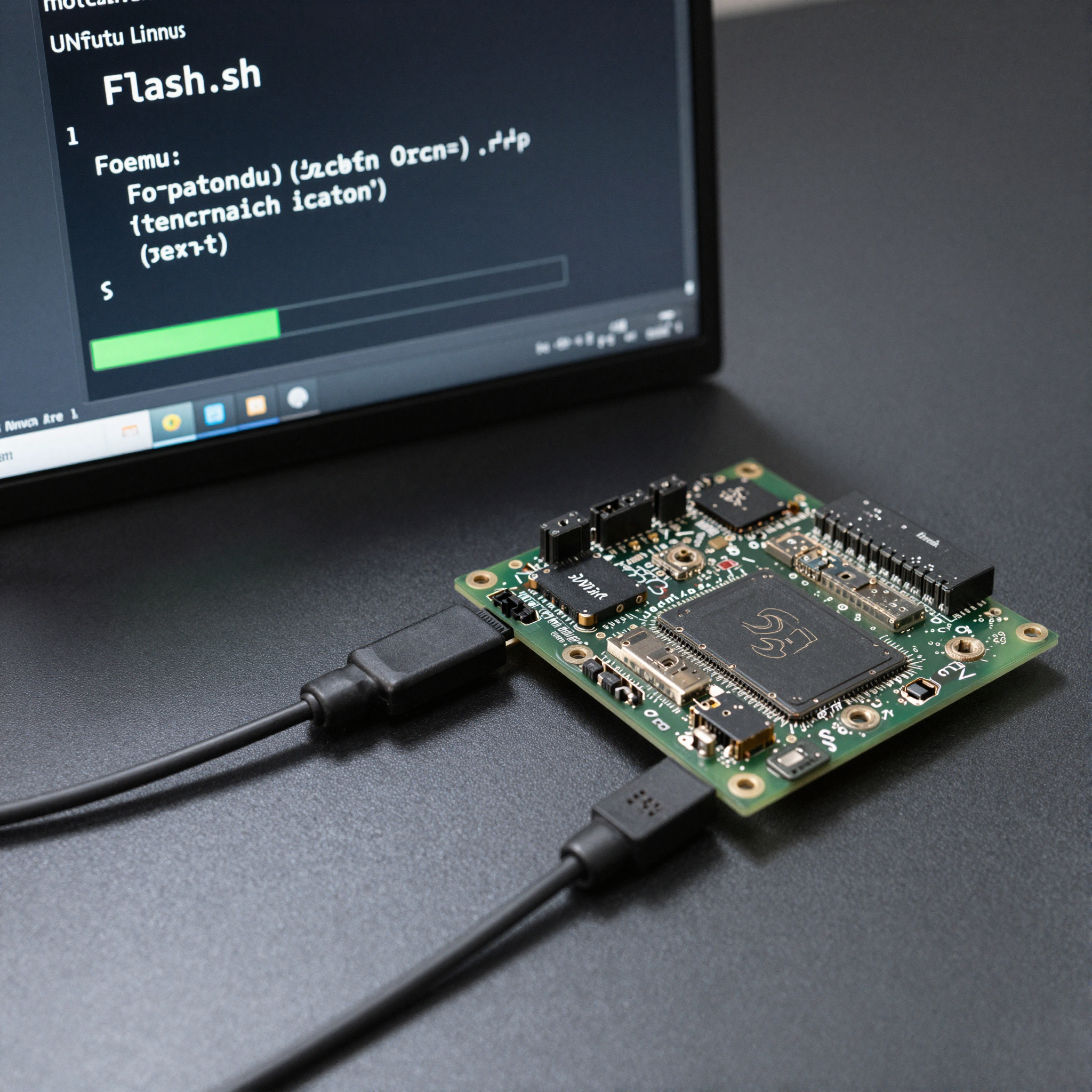
How to use flash.sh on Jetson Orin: parameters, board configs, and common errors
flash.sh is NVIDIA’s flashing tool included in every L4T BSP release. It’s how you get JetPack onto a Jetson board for the first time, reflash after a failed bring-up, update the kernel, or flash a custom carrier board. Understanding its parameters and failure modes saves hours on every bring-up engagement. This post covers everything you need to use flash.sh on Jetson Orin correctly.
Key Insights
- flash.sh is in
Linux_for_Tegra/after extracting the L4T BSP, not installed as a system command - Recovery mode must be verified with
lsusbbefore running flash.sh, a USB connection alone isn’t enough - The board config file determines what gets flashed, wrong config on a custom carrier board results in a bricked board
- Partial flash with
-klets you update just the kernel or DTB without touching the rootfs, much faster for iterative bring-up - For custom carrier boards, apply the vendor BSP with
apply_binaries.shbefore flashing, skipping this step is the most common mistake we see
Prerequisites
Flash.sh runs on an Ubuntu host (20.04 or 22.04, NVIDIA’s tested platforms). You need:
- Ubuntu host machine (native preferred over VM for USB reliability)
- NVIDIA JetPack/L4T BSP extracted on the host
- USB-A to USB-C or USB-A to Micro-B cable (depends on board, check your board docs)
- The Jetson board powered off
Install required host tools:
sudo apt install python3-pip qemu-user-static
pip3 install pyserial
Extracting the BSP
Download the L4T BSP from NVIDIA’s developer site. For Jetson Orin, the BSP is two tarballs: the main L4T package and the rootfs.
# Extract L4T
tar xf Jetson_Linux_R36.x.x_aarch64.tbz2

# Extract rootfs into the correct location
cd Linux_for_Tegra/rootfs/
sudo tar xpf ../../Tegra_Linux_Sample-Root-Filesystem_R36.x.x_aarch64.tbz2

# Apply default binaries
cd ..
sudo ./apply_binaries.sh
After this, flash.sh is at Linux_for_Tegra/flash.sh.
Putting Jetson Orin in recovery mode
Recovery mode makes the board present as a flashing target over USB. Without it, flash.sh cannot reach the board.
Orin devkit recovery sequence:
- Ensure the board is powered off
- Connect USB cable from host to the Orin’s USB-C recovery port
- Hold the FORCE RECOVERY button (labeled on the devkit)
- Press and release the POWER button
- Release FORCE RECOVERY
Verify on the host:
lsusb | grep NVIDIA
# Expected output:
# Bus 001 Device 005: ID 0955:7023 NVIDIA Corp. APX
If you see the APX device, the board is in recovery mode and ready to flash. If nothing appears, try a different USB cable, many USB-C cables are charge-only and don’t carry data.
Custom carrier board recovery: The recovery pin location varies by board. Check your carrier board schematic or vendor documentation for the FORCE RECOVERY GPIO or button.
Basic flash command
cd Linux_for_Tegra
sudo ./flash.sh <board-config> <storage-device>
Common board configs for Jetson Orin devkits:
| Board | Config file |
|---|---|
| Jetson Orin Nano (8GB, devkit) | jetson-orin-nano-devkit |
| Jetson Orin Nano (4GB, devkit) | jetson-orin-nano-devkit-4g |
| Jetson Orin NX 16GB (devkit) | jetson-orin-nx-16g-devkit |
| Jetson Orin NX 8GB (devkit) | jetson-orin-nx-8g-devkit |
| Jetson AGX Orin (devkit) | jetson-agx-orin-devkit |
Storage device targets:
| Storage type | Target value |
|---|---|
| eMMC | mmcblk0p1 |
| NVMe SSD | nvme0n1p1 |
| USB | sda |
| SD card (Orin Nano) | mmcblk1p1 |
Full flash example for Orin Nano to eMMC:
sudo ./flash.sh jetson-orin-nano-devkit mmcblk0p1
Flash takes 5–15 minutes depending on rootfs size and USB speed. Watch for Flash successfully in the output.
Partial flash with the -k flag
Reflashing the full rootfs every time you change the kernel or device tree is slow. Use -k to update a single partition:
# Flash only the kernel
sudo ./flash.sh -k kernel jetson-orin-nano-devkit mmcblk0p1

# Flash only the device tree
sudo ./flash.sh -k kernel-dtb jetson-orin-nano-devkit mmcblk0p1

# Flash bootloader only (QSPI)
sudo ./flash.sh -k bup-payload jetson-orin-nano-devkit mmcblk0p1
Partial flash is the standard workflow during BSP bring-up iteration, change DTS, flash kernel-dtb, boot, verify, repeat. No rootfs touch means your test environment stays intact.
List available partitions:
sudo ./flash.sh --no-flash jetson-orin-nano-devkit mmcblk0p1
# Generates the flash image and partition list without actually flashing
Flashing a custom carrier board
Custom carrier boards require a vendor-provided board config file. The workflow:
1. Apply the vendor BSP:
cd Linux_for_Tegra
sudo ./apply_binaries.sh
If the vendor provides their own apply script, run that instead, some vendors add extra binary patches beyond the standard apply_binaries.sh.
2. Use the vendor’s config file:
# Vendor config files are typically in bootloader/
ls bootloader/ | grep ".conf"

# Flash with vendor config
sudo ./flash.sh <vendor-board-config> mmcblk0p1
The vendor BSP README specifies the exact config file name. Using the wrong config on a custom carrier board (e.g., using jetson-orin-nano-devkit when the board has a different power tree) can result in a boot failure or hardware damage in extreme cases.
3. Verify flash with vendor’s recommended boot procedure. Some vendor boards require additional steps after flash (QSPI write, bootloader key injection).
Common errors
“Device not found” or flash.sh hangs at start
The board isn’t in recovery mode, or the USB connection isn’t recognized. Run lsusb | grep NVIDIA first. If nothing appears, recovery mode failed. Try: different cable, different USB port (USB 2.0 port is often more reliable than USB 3.0 for recovery), and verify recovery button sequence.
“tegraflash.py failed with error 1”
The underlying flash tool (tegraflash.py) encountered an error. Check the full output for the specific failure message. Common causes: missing Python dependencies (pip3 install pyserial), wrong board config, or corrupted BSP extraction. Re-extract the BSP and retry.
“Failed to push bootloader payload” USB connection dropped mid-flash. Usually a cable or hub issue. Use a direct USB connection to the host (no hub), and if possible a shorter cable. Some USB 3.0 ports have issues with Jetson recovery mode, try USB 2.0.
“Partition table mismatch”
The board config specifies a partition layout that doesn’t match what’s already on the device. This happens when switching board configs (e.g., changing eMMC to NVMe). Add --no-systemimg flag, or do a full QSPI erase first with:
sudo ./flash.sh --erase-all jetson-orin-nano-devkit mmcblk0p1
“apply_binaries.sh: command not found”
You’re in the wrong directory, or the BSP wasn’t extracted correctly. apply_binaries.sh lives in Linux_for_Tegra/. If it’s missing, re-extract the L4T BSP tarball.
Generating a flash image without flashing
The --no-flash flag generates the full flash image and partition XML without connecting to any board. Useful for CI/CD pipelines or pre-staging:
sudo ./flash.sh --no-flash jetson-orin-nano-devkit mmcblk0p1
This produces flash.img and the partition layout in Linux_for_Tegra/bootloader/. The image can then be flashed separately using tegraflash.py directly.
Verifying the flash
After a successful flash, the board reboots into JetPack. Verify the L4T version:
cat /etc/nv_tegra_release
# R36 (release), REVISION: 3.0, GCID: ...

# Or via the jtop tool
sudo pip3 install jetson-stats
jtop
Confirm the CUDA, TensorRT, and JetPack versions match what you flashed.
If the board doesn’t boot after a successful Flash successfully message, the most common cause is a device tree mismatch, the board config doesn’t match the actual hardware. For custom carrier board boot failures, see Jetson carrier board not booting: 6 root causes. For UEFI shell failures specifically, see Jetson UEFI shell at boot: assertion errors and how to recover. If you’re flashing a custom carrier board as part of a bring-up engagement, ProventusNova handles the full BSP bring-up process.
FAQ
How do I put Jetson Orin in recovery mode for flashing?
On the Orin devkit: hold the FORCE RECOVERY button, press and release the POWER button, then release FORCE RECOVERY. Verify with lsusb | grep NVIDIA, you should see 0955:7023 NVIDIA Corp. APX. If nothing appears, try a different USB cable or port. A USB 2.0 port is sometimes more reliable than USB 3.0 for recovery mode.
What board config file should I use with flash.sh?
For NVIDIA devkits: jetson-orin-nano-devkit (Orin Nano), jetson-agx-orin-devkit (AGX Orin), jetson-orin-nx-16g-devkit (Orin NX 16GB). For custom carrier boards or third-party boards, use the .conf file provided in the vendor’s BSP package.
Can flash.sh flash just the kernel without reflashing the entire rootfs?
Yes. Use the -k flag: sudo ./flash.sh -k kernel jetson-orin-nano-devkit mmcblk0p1. Common targets: kernel (kernel image), kernel-dtb (device tree), APP (rootfs).
How do I flash a custom carrier board with flash.sh?
Apply the vendor BSP first with sudo ./apply_binaries.sh. Then flash using the vendor’s board config file: sudo ./flash.sh <vendor-board-config> mmcblk0p1. The vendor’s BSP README specifies the exact config file name.
Why does flash.sh say “device not found” even with the USB connected?
The board isn’t in recovery mode. Verify with lsusb | grep NVIDIA, you must see the APX device. If lsusb shows nothing: try a different USB cable (some cables are charge-only), use a direct USB-A port instead of a hub, and verify you held the recovery button before applying power.
Relevant Services
NVIDIA Jetson Expert Support
Stuck on a Jetson bring-up?
We've debugged this failure mode before. BSP, device tree, camera pipelines, OTA, most blockers clear in the first session. No long retainers. No guessing.
Frequently Asked Questions
How do I put Jetson Orin in recovery mode for flashing?
On the Orin devkit: hold the FORCE RECOVERY button (button 3), press and release the POWER button (button 1), then release FORCE RECOVERY. Verify with 'lsusb | grep NVIDIA', you should see '0955:7023 NVIDIA Corp. APX'. If nothing appears, try a different USB cable or port. A USB 2.0 port is sometimes more reliable than USB 3.0 for recovery mode.
What board config file should I use with flash.sh?
For NVIDIA devkits: jetson-orin-nano-devkit (Orin Nano), jetson-agx-orin-devkit (AGX Orin), jetson-orin-nx-16g-devkit (Orin NX 16GB). For custom carrier boards or third-party boards, use the .conf file provided in the vendor's BSP package, it's typically in the Linux_for_Tegra/bootloader/ directory after applying the vendor BSP.
Can flash.sh flash just the kernel without reflashing the entire rootfs?
Yes. Use the -k flag to flash only a specific partition: 'sudo ./flash.sh -k kernel jetson-orin-nano-devkit mmcblk0p1'. Common partial flash targets: 'kernel' (kernel image), 'kernel-dtb' (device tree), 'APP' (rootfs). This is much faster than a full flash and preserves your existing rootfs.
How do I flash a custom carrier board with flash.sh?
Apply the vendor BSP first with 'sudo ./apply_binaries.sh' in the Linux_for_Tegra directory. This patches the BSP files with vendor-specific binaries. Then flash using the vendor's board config file: 'sudo ./flash.sh <vendor-board-config> mmcblk0p1'. The vendor's BSP README will specify the exact config file name and any additional steps.
Why does flash.sh say 'device not found' even with the USB connected?
The board isn't in recovery mode, or the USB isn't recognized. Verify recovery mode with 'lsusb | grep NVIDIA', you must see the APX device. If lsusb shows nothing: try a different USB cable (some cables are charge-only), use a direct USB-A port instead of a hub, and make sure you held the recovery button before applying power.
Written by
Andrés CamposCo-Founder & CTO · ProventusNova
8 years deep in embedded systems, from underwater ROVs to edge AI. Andrés leads every technical delivery personally.
Connect on LinkedInRelated Articles
Upgrading from JetPack 5 to JetPack 6: what breaks and how to fix it
JetPack 5 to 6 is a full platform jump, not a package update. CUDA 11→12, cuDNN 8→9, Ubuntu 20→22, camera drivers, TRT engines, and kernel modules.
Custom Carrier Board Not Booting on Jetson Orin: Fixed in One Session
Custom carrier board not booting on Jetson Orin? Farmhand AI's board booted in one session. Three BSP parameters cause most Jetson bring-up failures.
JetPack versions and L4T compatibility: complete reference table
Complete JetPack version to L4T, CUDA, TensorRT, and supported module reference table. Includes how to check your running version and key differences.
Hardware design mistakes that cause Jetson carrier board bring-up failures
The hardware design mistakes that reliably cause Jetson carrier board bring-up failures: power sequencing, EEPROM errors, ODMDATA mismatches, and PCB.